> ## Documentation Index
> Fetch the complete documentation index at: https://ormilabs.com/docs/llms.txt
> Use this file to discover all available pages before exploring further.

# How to query a Uniswap v4 subgraph with Ormi 0xGraph

> Subgraphs provides fast, reliable, and structured access to onchain data - without the need to run your own indexing infrastructure.

<div
  style={{
margin: "0",
padding: "1rem 1.25rem",
overflow: "hidden",
borderRadius: "1rem",
display: "flex",
gap: "0.75rem",
border: "1px solid rgba(113, 113, 122, 0.2)",
backgroundColor: "rgba(244, 244, 245, 0.5)",
}}
>
  <div style={{ marginTop: "0.125rem", width: "1rem" }}>
    <svg
      viewBox="0 0 20 20"
      fill="currentColor"
      xmlns="http://www.w3.org/2000/svg"
      style={{
    width: "1.25rem",
    height: "1.25rem",
    color: "rgba(113, 113, 122, 0.6)",
  }}
    >
      <path d="M8 0C3.58125 0 0 3.58125 0 8C0 12.4187 3.58125 16 8 16C12.4187 16 16 12.4187 16 8C16 3.58125 12.4187 0 8 0ZM8 14.5C4.41563 14.5 1.5 11.5841 1.5 8C1.5 4.41594 4.41563 1.5 8 1.5C11.5844 1.5 14.5 4.41594 14.5 8C14.5 11.5841 11.5844 14.5 8 14.5ZM9.25 10.5H8.75V7.75C8.75 7.3375 8.41563 7 8 7H7C6.5875 7 6.25 7.3375 6.25 7.75C6.25 8.1625 6.5875 8.5 7 8.5H7.25V10.5H6.75C6.3375 10.5 6 10.8375 6 11.25C6 11.6625 6.3375 12 6.75 12H9.25C9.66406 12 10 11.6641 10 11.25C10 10.8359 9.66563 10.5 9.25 10.5ZM8 6C8.55219 6 9 5.55219 9 5C9 4.44781 8.55219 4 8 4C7.44781 4 7 4.44687 7 5C7 5.55313 7.44687 6 8 6Z" />
    </svg>
  </div>

  <div style={{ fontSize: "0.875rem", minWidth: "0", width: "100%" }}>
    <h3 style={{ fontWeight: "600", margin: "0 0 0.5rem 0" }}>Start querying Uniswap v4 instantly</h3>

    <p style={{ margin: "0" }}>
      Uniswap v4 data on Base is already indexed and ready to use on Ormi. With a free developer account, you can start querying protocol data right away - no
      setup, no credit card required. [Start free.](http://app.ormilabs.com/)
    </p>
  </div>
</div>

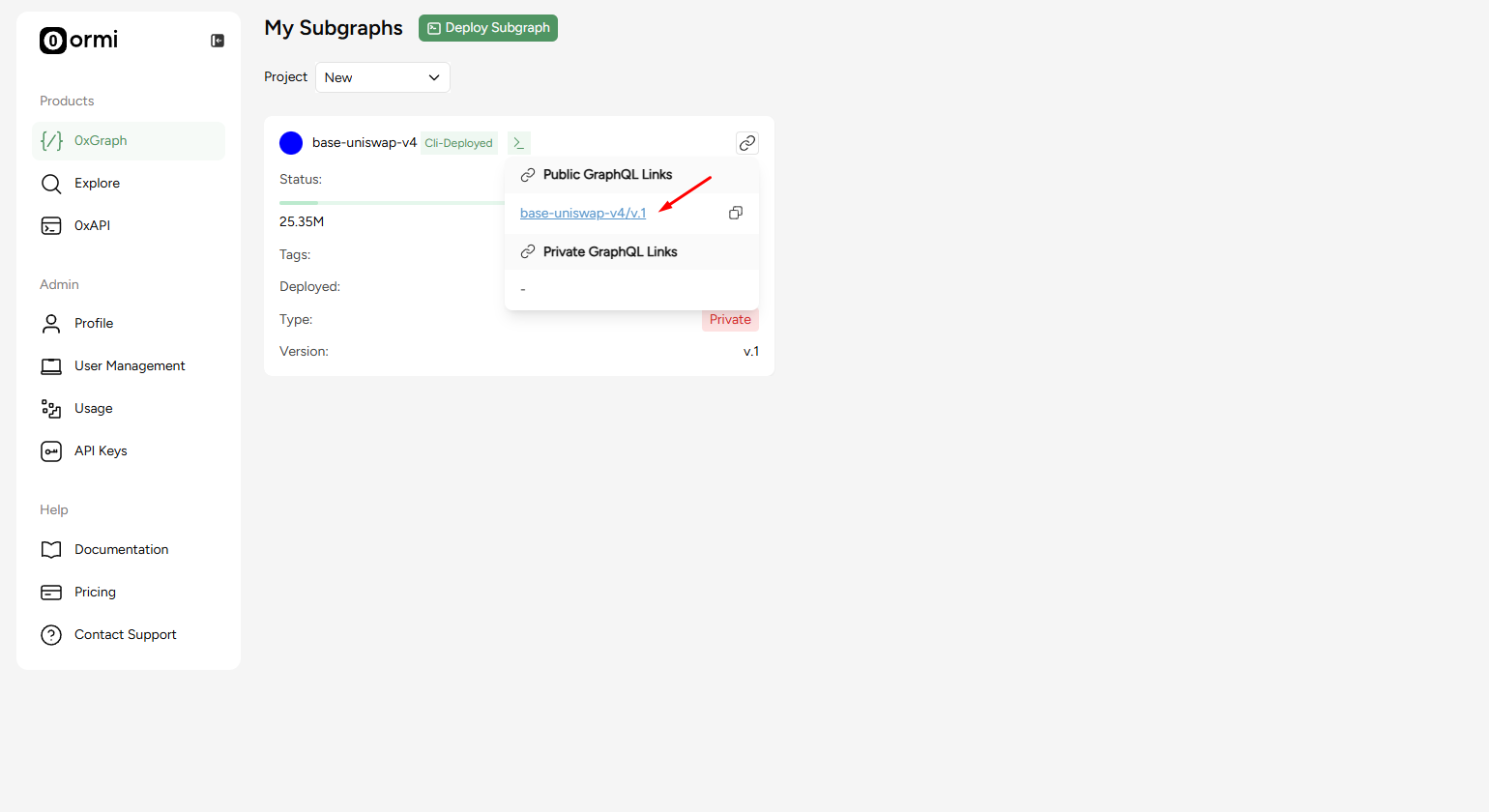
## Go to the 0xGraph page and click on the URL icon

<Frame>
  <img src="https://mintcdn.com/ormilabs/XdTpJ0jGUKw4Ynly/images/how-to/subgraph-query.png?fit=max&auto=format&n=XdTpJ0jGUKw4Ynly&q=85&s=382d999f1c440c34e797f57dba87e8df" alt="0xGraph graph init" width="1540" height="840" data-path="images/how-to/subgraph-query.png" />

  <figcaption>API Keys</figcaption>
</Frame>

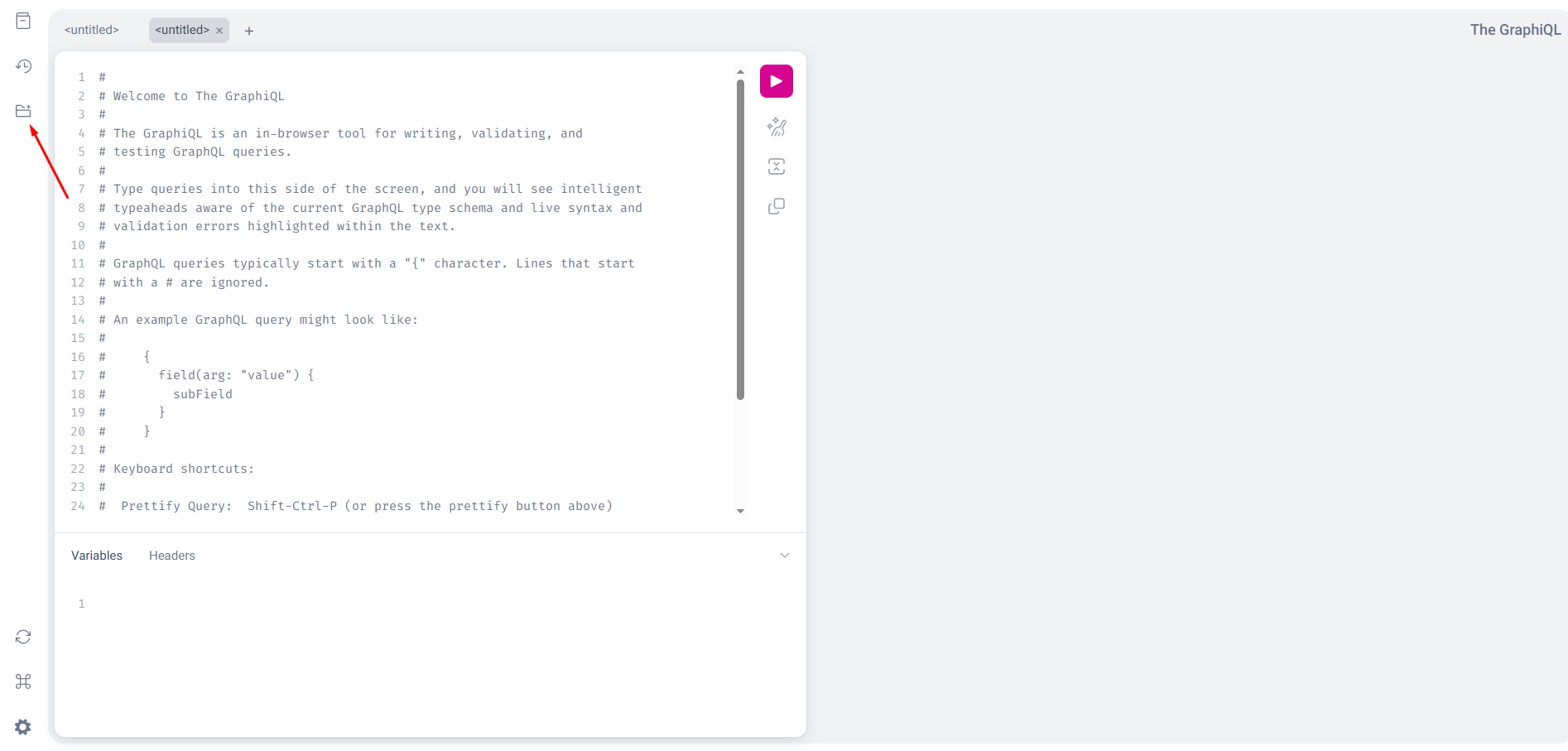
## Open GraphiQL Explorer

<Frame>
  <img src="https://mintcdn.com/ormilabs/XdTpJ0jGUKw4Ynly/images/how-to/subgraph-query2.png?fit=max&auto=format&n=XdTpJ0jGUKw4Ynly&q=85&s=e6be210c428276aa4299b843c33ccd57" alt="0xGraph graph init" width="1894" height="907" data-path="images/how-to/subgraph-query2.png" />

  <figcaption>API Keys</figcaption>
</Frame>

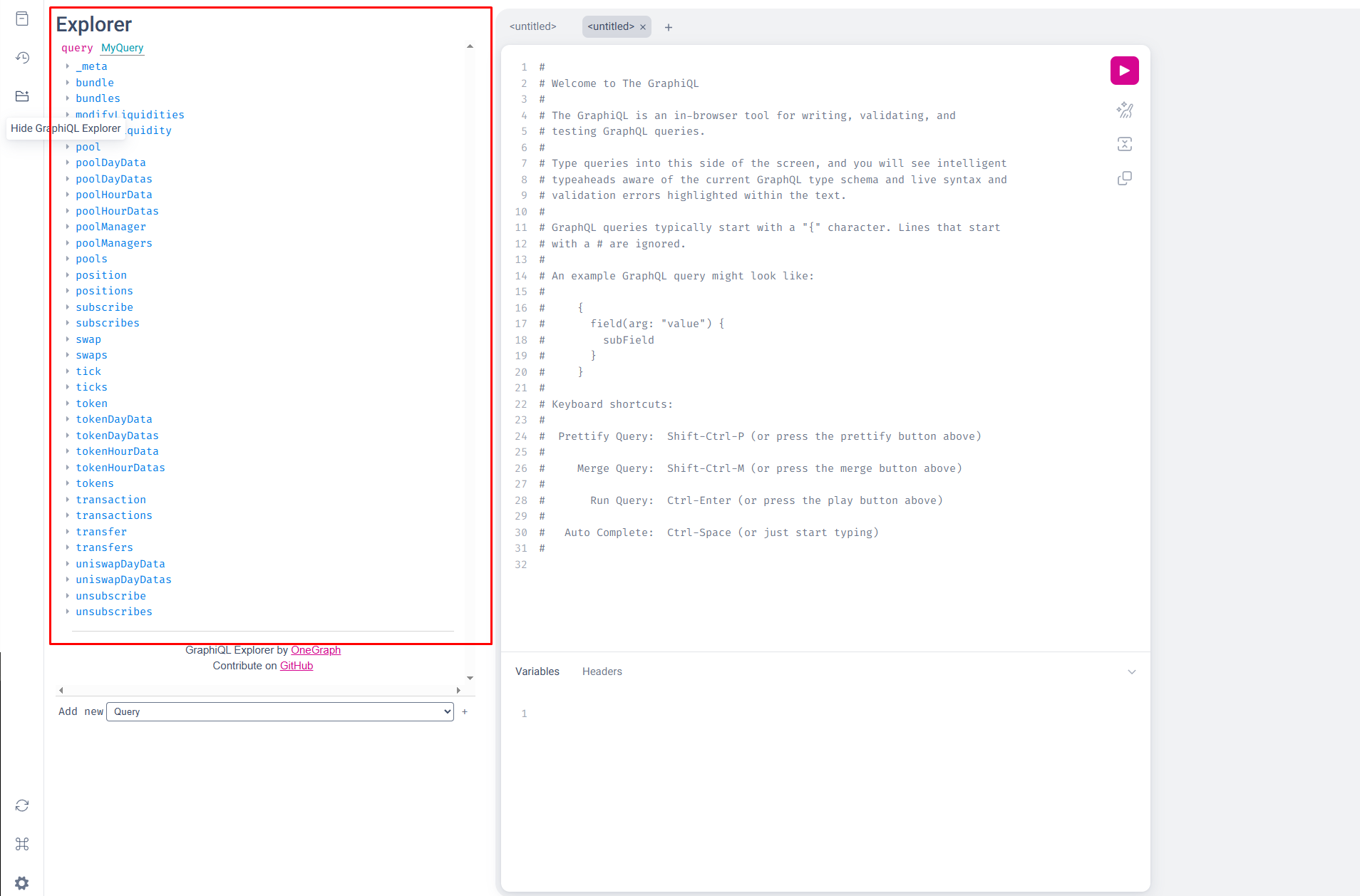
## Introspect the schema

After opening the Explorer, you'll be able to see available entites, for example pool, swap, poolDayData, etc.

<Frame>
  <img src="https://mintcdn.com/ormilabs/XdTpJ0jGUKw4Ynly/images/how-to/subgraph-query3.png?fit=max&auto=format&n=XdTpJ0jGUKw4Ynly&q=85&s=281531b32e4358ad7fb203352bde039f" alt="0xGraph graph init" width="1908" height="1257" data-path="images/how-to/subgraph-query3.png" />

  <figcaption>API Keys</figcaption>
</Frame>

## Core entities and what they mean

* `uniswapDayDatas` - protocol-wide daily snapshot
* `poolManager`- Uniswap's global accounting contract. Holds network-wide stats like total volume, fees and pool counts.
* `pools` / `pool` - A liquidity pool which tracks liquidity, swaps, ticks, etc.
* `poolDayDatas` - Daily snapshots for one pool.
* `tokenDayDatas` - Daily snapshot for a token across all pools.
* `swaps` - Individual trade events like buyer/seller, amounts, timestamp.
* `positions` - Liqiuidty provider positions.

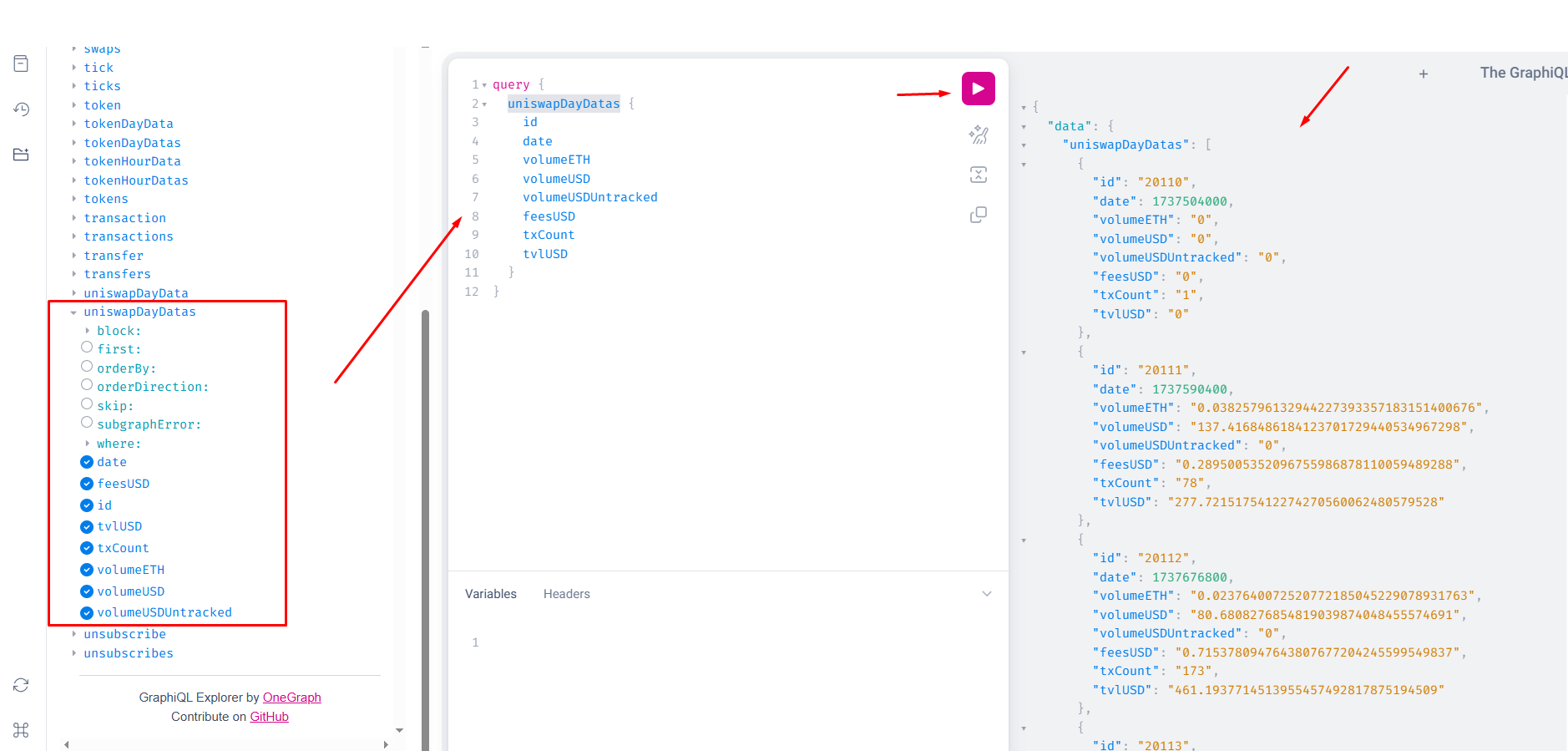
## Creating your own query using Explorer

<Frame>
  <img src="https://mintcdn.com/ormilabs/XdTpJ0jGUKw4Ynly/images/how-to/subgraph-query4.png?fit=max&auto=format&n=XdTpJ0jGUKw4Ynly&q=85&s=6bd6a85caa491f50d55839663181b17e" alt="0xGraph graph init" width="1878" height="899" data-path="images/how-to/subgraph-query4.png" />

  <figcaption>API Keys</figcaption>
</Frame>

1. Select the entities and fields you want to query.
2. Press run
3. Get output

In this example, I ran:

### Input

```
query {
  uniswapDayDatas {
    id
    date
    volumeETH
    volumeUSD
    volumeUSDUntracked
    feesUSD
    txCount
    tvlUSD
  }
}
```

### Output

```
{
  "data": {
    "uniswapDayDatas": [
      {
        "id": "20110",
        "date": 1737504000,
        "volumeETH": "0",
        "volumeUSD": "0",
        "volumeUSDUntracked": "0",
        "feesUSD": "0",
        "txCount": "1",
        "tvlUSD": "0"
      },
      {
        "id": "20111",
        "date": 1737590400,
        "volumeETH": "0.03825796132944227393357183151400676",
        "volumeUSD": "137.4168486184123701729440534967298",
        "volumeUSDUntracked": "0",
        "feesUSD": "0.2895005352096755986878110059489288",
        "txCount": "78",
        "tvlUSD": "277.7215175412274270560062480579528"
      },
```

## Querying for pool-level daily stats

### Input

```
{
  poolManager(id: "0x498581ff718922c3f8e6a244956af099b2652b2b") {
    poolCount
    txCount
    totalVolumeUSD
    totalVolumeETH
  }
}
```

* `poolCount` - how many pools exist
* `txCount` - total txns / swaps recorded
* `totalVolumeUSD/ETH` - cumulative trading volume since launch

### Output

```
{
  "data": {
    "poolManager": {
      "poolCount": "6404",
      "txCount": "2660638",
      "totalVolumeUSD": "118888687.8347001359469929298875743",
      "totalVolumeETH": "51610.64004064559902428529500862623"
    }
  }
}
```

## You can now start querying!