> ## Documentation Index
> Fetch the complete documentation index at: https://ormilabs.com/docs/llms.txt
> Use this file to discover all available pages before exploring further.
# How to manage API endpoints with tags
> Tags let you **hot-swap subgraph deployments** without changing your front-end URL.
## What are tags?
* Tags let you **version and manage your subgraph endpoints** without changing your URL.
* They act as pointers that direct your GraphQL endpoint to a specific subgraph deployment.
 API Keys
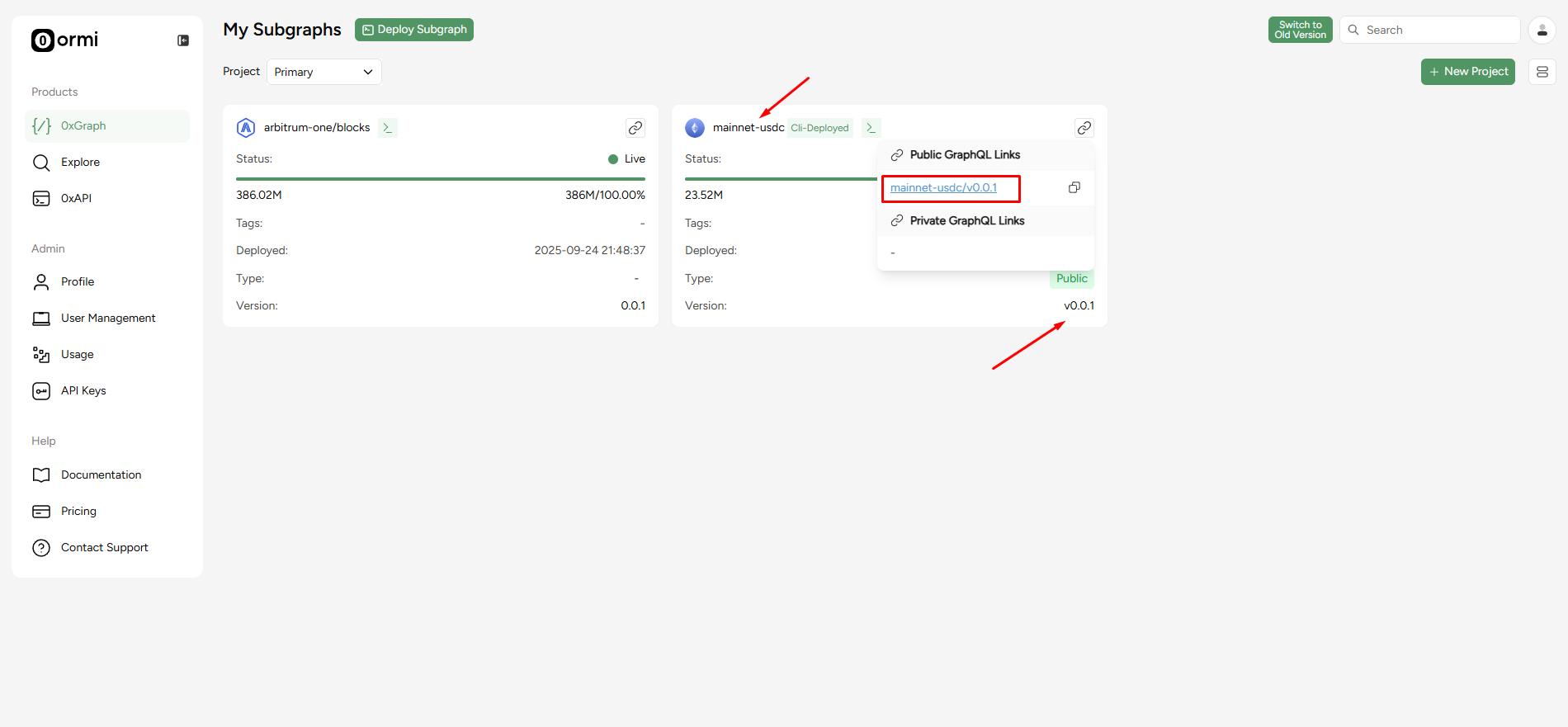
When you deploy a subgraph, a tag is automatically created using this format:
`subgraph-name` + `version`
For example: `mainnet-usdc/v0.0.1`
This tag is composed of:
* **Name** - The subgraph name (`mainnet-usdc`)
* **Version** - The deployed version (`v0.0.1`)
Tags always point to a specific subgraph deployment. When you deploy a subgraph, a tag is created automatically based on the **name** and **version**.
## How tags work
* Tags let you **update or replace a subgraph deployment** without breaking your existing endpoint.
* This allows you to test, sync, and deploy new versions **without downtime or front-end changes**.
### Example workflow
1. You deploy `mainnet-usdc v0.0.1` and tag it as `prod`, giving you this endpoint:
```
/mainnet-usdc/prod
```
2. You deploy an updated version of `mainnet-usdc v0.0.1` for testing and call it:
* **Name**: `mainnet-usdc`
* **Version**: `v2.0`
3. Once it's synced and ready, you reassign the `prod` tag to the `mainnet-usdc v2.0` subgraph.
Your application keeps querying the same endpoint (`/mainnet-usdc/prod`), but now it serves data from the new version without downtime or code changes.
Tags can only be reassigned between deployments that **share the same subgraph name**. If you change the name, the tag will no longer apply.
## When to use tags
* **Product stability**: Swap new versions in real-time without downtime.
* **Testing environments**: Route traffic between subgraphs used in `staging`, and `prod`.
* **Version management**: Keep a single stable URL across multiple subgraph updates.
Tags are ideal when you need continuous data delivery while testing or upgrading. They’re not needed for one-off or experimental subgraphs.
## How to create tags
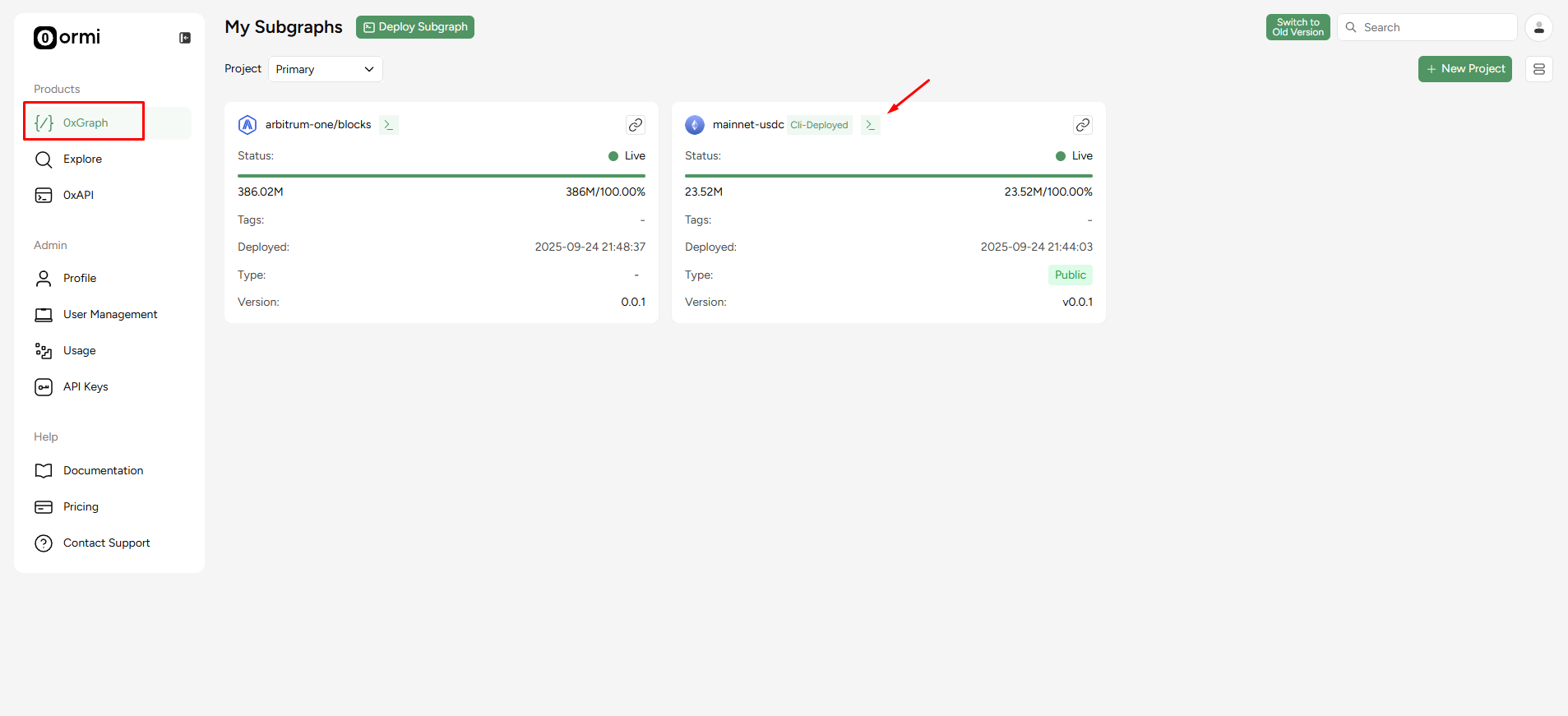
### Step 1: Access 0xGraph and press the `>_` icon
API Keys
When you deploy a subgraph, a tag is automatically created using this format:
`subgraph-name` + `version`
For example: `mainnet-usdc/v0.0.1`
This tag is composed of:
* **Name** - The subgraph name (`mainnet-usdc`)
* **Version** - The deployed version (`v0.0.1`)
Tags always point to a specific subgraph deployment. When you deploy a subgraph, a tag is created automatically based on the **name** and **version**.
## How tags work
* Tags let you **update or replace a subgraph deployment** without breaking your existing endpoint.
* This allows you to test, sync, and deploy new versions **without downtime or front-end changes**.
### Example workflow
1. You deploy `mainnet-usdc v0.0.1` and tag it as `prod`, giving you this endpoint:
```
/mainnet-usdc/prod
```
2. You deploy an updated version of `mainnet-usdc v0.0.1` for testing and call it:
* **Name**: `mainnet-usdc`
* **Version**: `v2.0`
3. Once it's synced and ready, you reassign the `prod` tag to the `mainnet-usdc v2.0` subgraph.
Your application keeps querying the same endpoint (`/mainnet-usdc/prod`), but now it serves data from the new version without downtime or code changes.
Tags can only be reassigned between deployments that **share the same subgraph name**. If you change the name, the tag will no longer apply.
## When to use tags
* **Product stability**: Swap new versions in real-time without downtime.
* **Testing environments**: Route traffic between subgraphs used in `staging`, and `prod`.
* **Version management**: Keep a single stable URL across multiple subgraph updates.
Tags are ideal when you need continuous data delivery while testing or upgrading. They’re not needed for one-off or experimental subgraphs.
## How to create tags
### Step 1: Access 0xGraph and press the `>_` icon
 API Keys
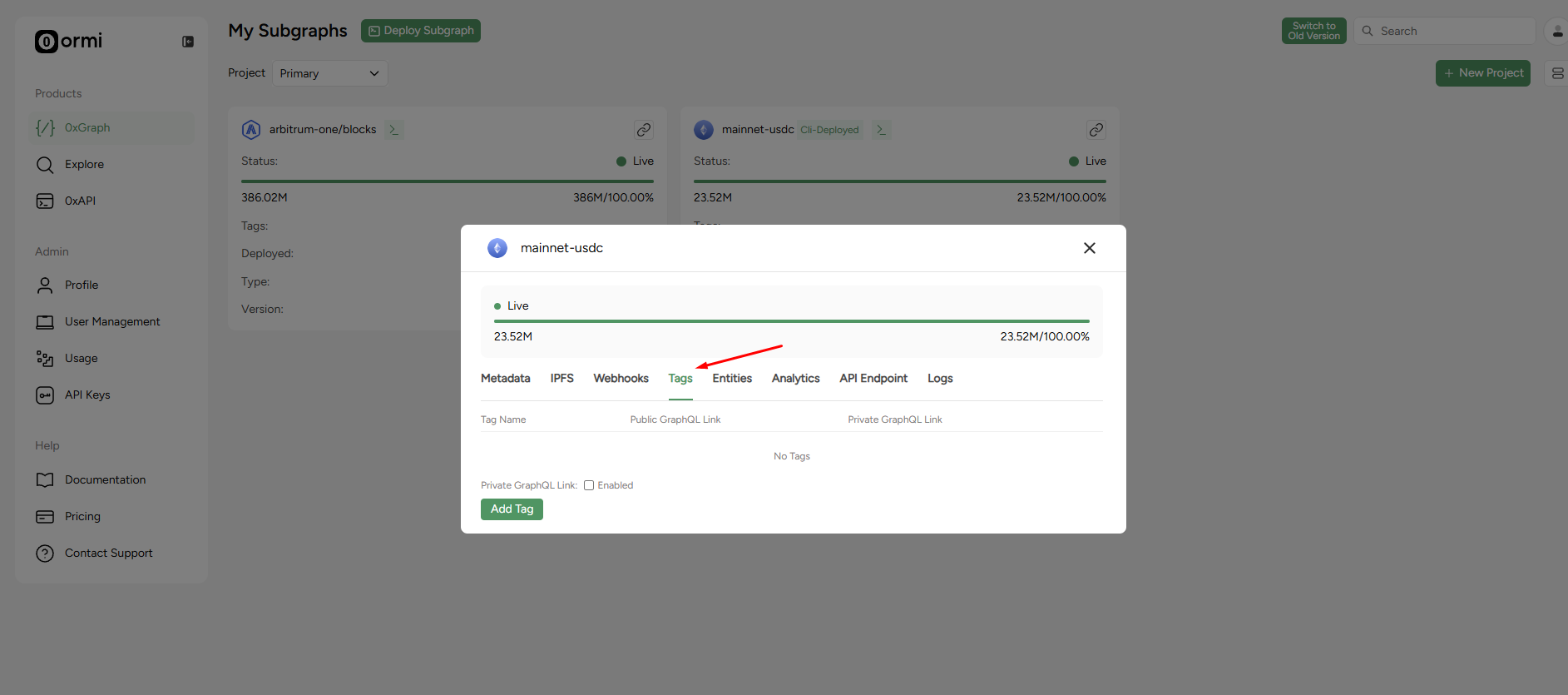
### Step 2: Click on the **Tags** tab
API Keys
### Step 2: Click on the **Tags** tab
 API Keys
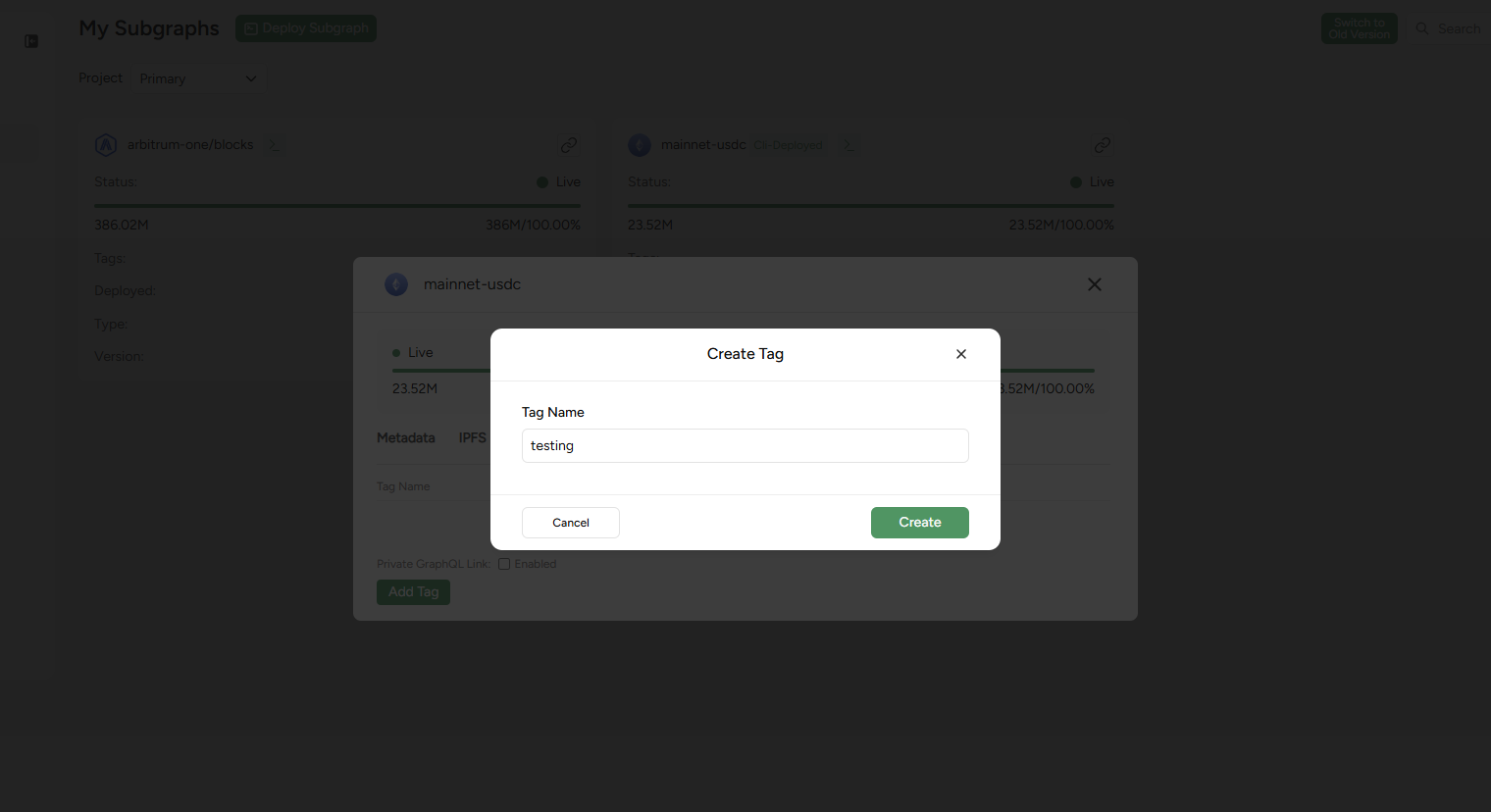
### Step 3: Generate a tag
We created a new tag called `testing`
API Keys
### Step 3: Generate a tag
We created a new tag called `testing`
 API Keys
Prefer managing tags programmatically? See the [**API Reference**](api-reference/0xGraph/tags/create-tag) for full details on creating, deleting, and querying
tags directly through the API.
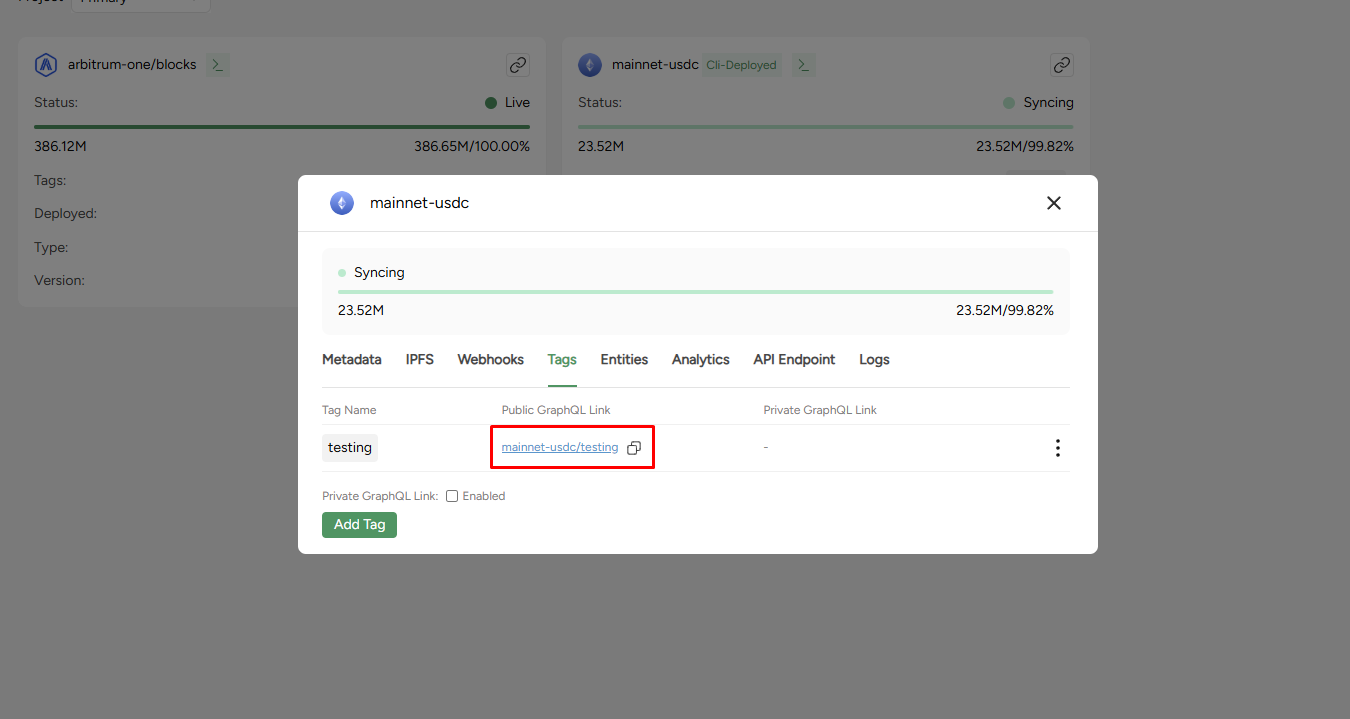
### Step 4: Query using the tag
API Keys
Prefer managing tags programmatically? See the [**API Reference**](api-reference/0xGraph/tags/create-tag) for full details on creating, deleting, and querying
tags directly through the API.
### Step 4: Query using the tag
 API Keys