> ## Documentation Index
> Fetch the complete documentation index at: https://ormilabs.com/docs/llms.txt
> Use this file to discover all available pages before exploring further.
# How to setup a private GraphQL URL
> Enable a private GraphQL endpoint to secure your subgraph data with API key authentication.
## What is a private GraphQL URL?
By default, every deployed subgraph includes a **public GraphQL endpoint**.
You can also enable a **private endpoint**, which requires an authentication token for every request.
### Private endpoints are ideal for:
* Restrict data access to trusted users or applications.
* Protect sensitive onchain data in production.
* Manage usage via authenticated API keys.
## How to enable a private GraphQL link
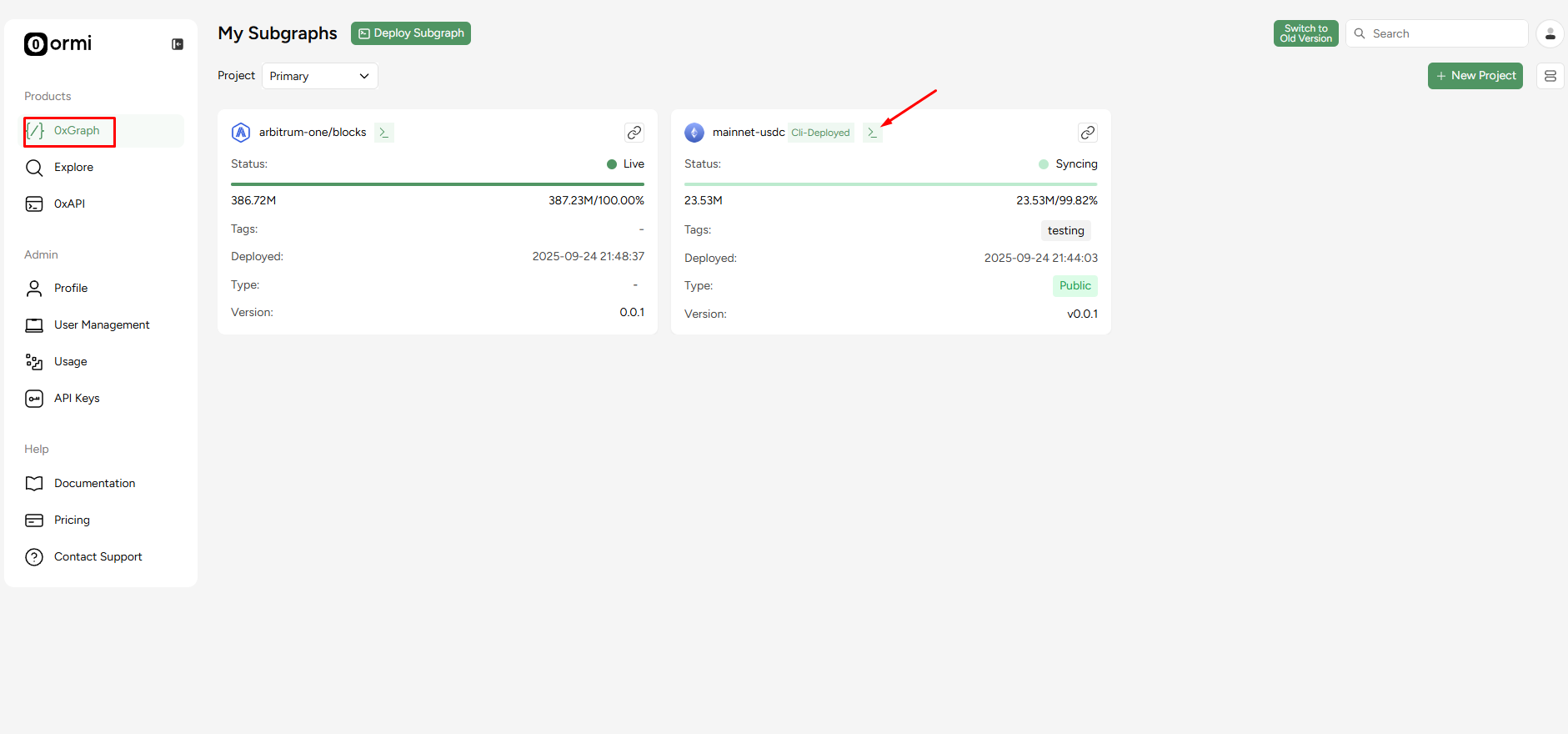
### Step 1: Navigate to the [0xGraph console](https://app.ormilabs.com/dashboard/0xgraph) and press the `>_` icon
 API Keys
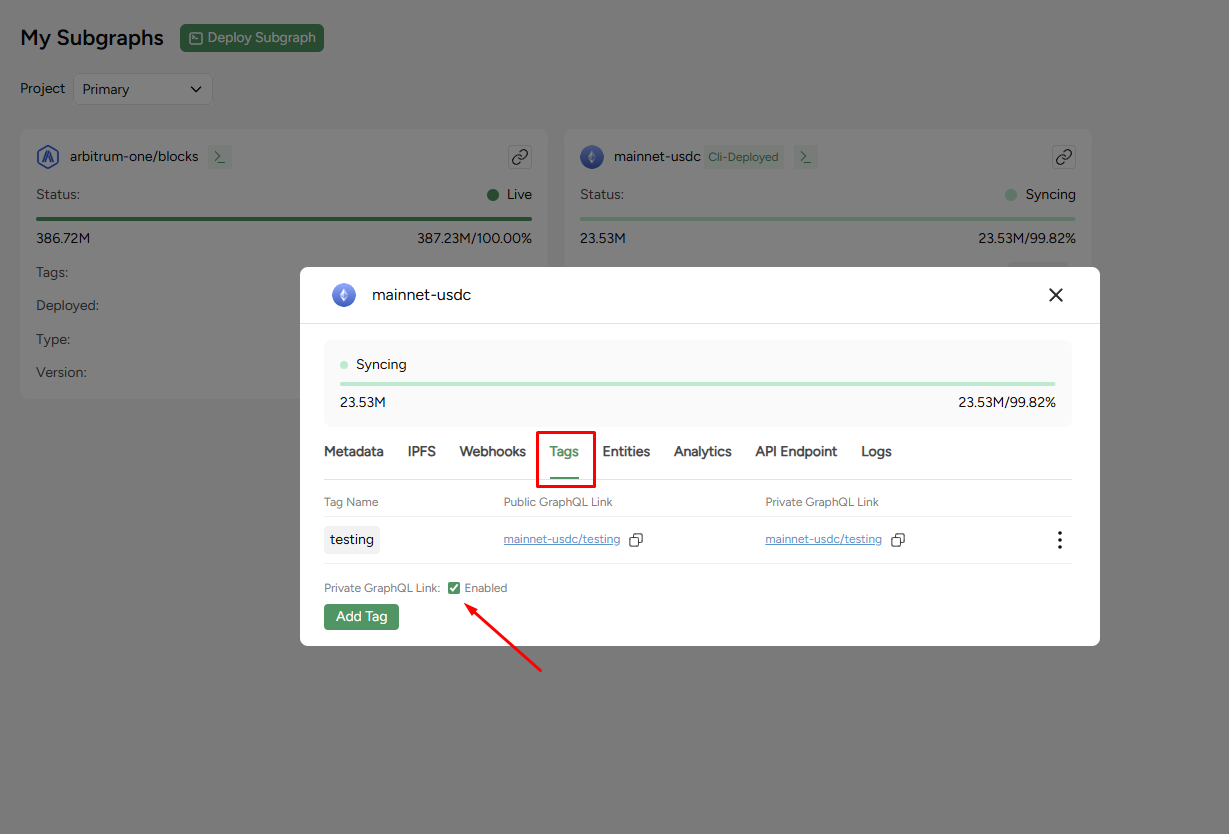
### Step 2: Click on the "Tags" tab
API Keys
### Step 2: Click on the "Tags" tab
 API Keys
### Step 3: Enable private GraphQL link
Tick the **Enabled** checkbox
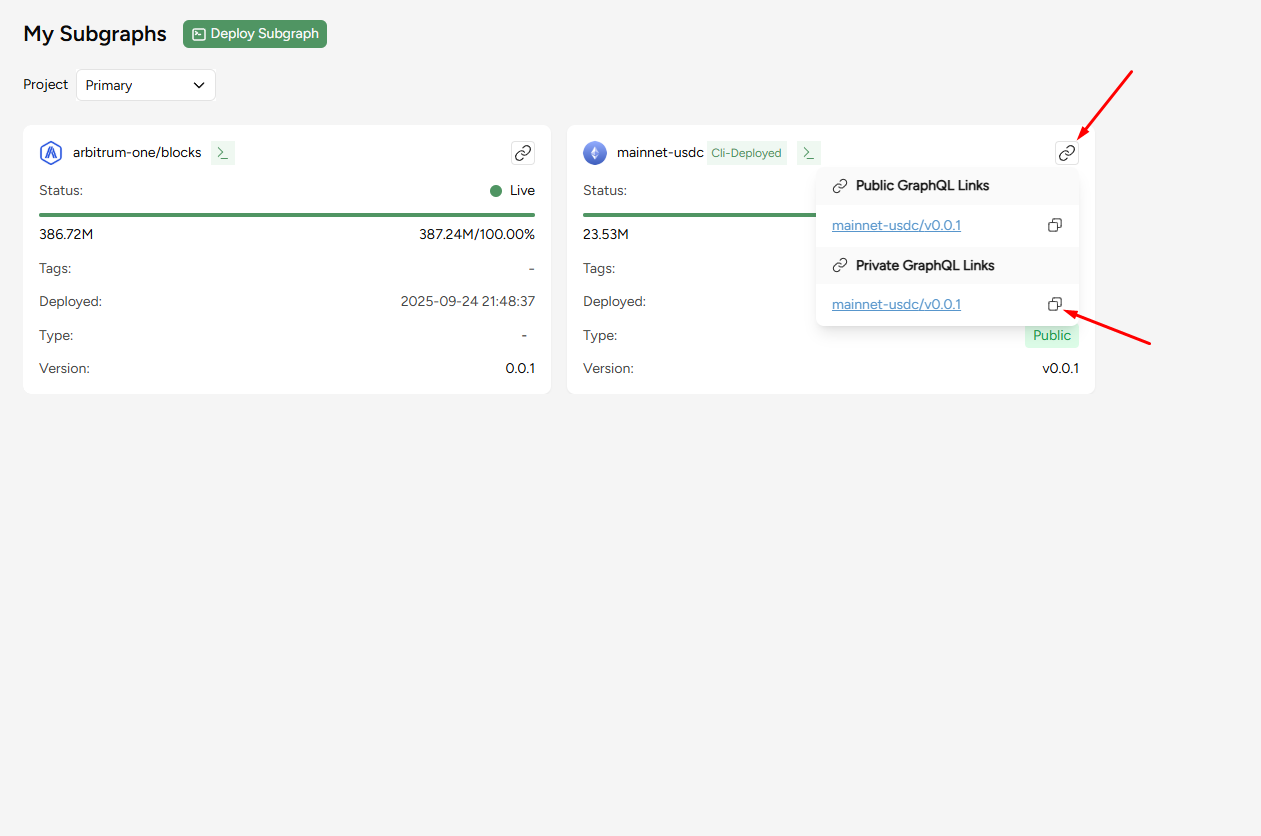
## Find your private URL
API Keys
### Step 3: Enable private GraphQL link
Tick the **Enabled** checkbox
## Find your private URL
 API Keys
Once enabled, your unique private GraphQL URL can be accesed from the 0xGraph console.
## Authenticate your requests
Private endpoints require an API key in the request header for authentication.
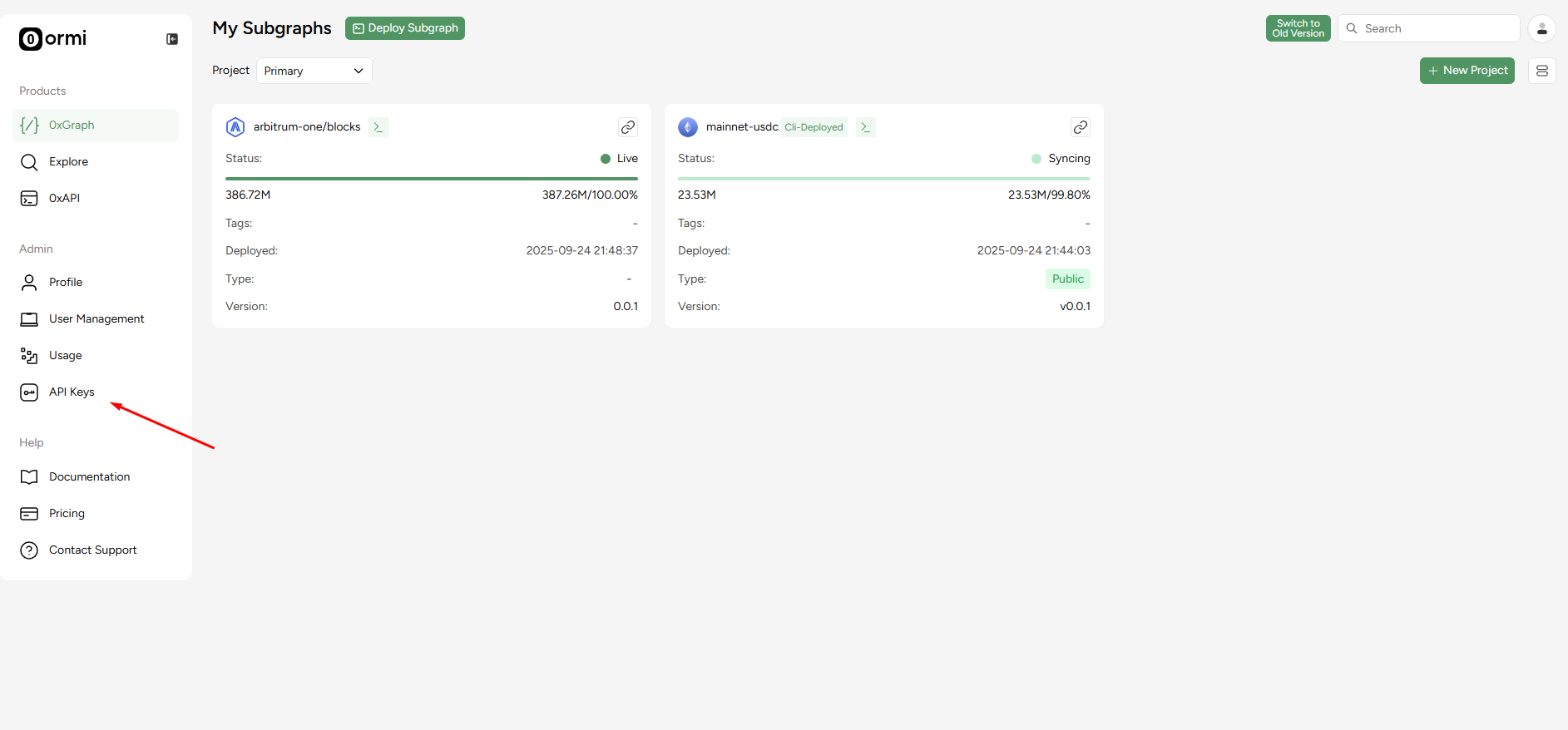
### Step 1: Generate an [API key](/docs/subgraphs/quickstart/generate-an-api-key).
API Keys
Once enabled, your unique private GraphQL URL can be accesed from the 0xGraph console.
## Authenticate your requests
Private endpoints require an API key in the request header for authentication.
### Step 1: Generate an [API key](/docs/subgraphs/quickstart/generate-an-api-key).
 API Keys
### Step 2: Add the API key into the `Authorization` header in the GraphQL client.
```
{ "Authorization": "Bearer GVOQH8CE7XL0WTOXXXXXXXXXX" }
```
Set the header value to `Bearer GVOQH8CE7XL0WTOXXXXXXXXXX`, replacing `GVOQH8CE7XL0WTOXXXXXXXXXX` with the API key you just generated.
API Keys
### Step 2: Add the API key into the `Authorization` header in the GraphQL client.
```
{ "Authorization": "Bearer GVOQH8CE7XL0WTOXXXXXXXXXX" }
```
Set the header value to `Bearer GVOQH8CE7XL0WTOXXXXXXXXXX`, replacing `GVOQH8CE7XL0WTOXXXXXXXXXX` with the API key you just generated.
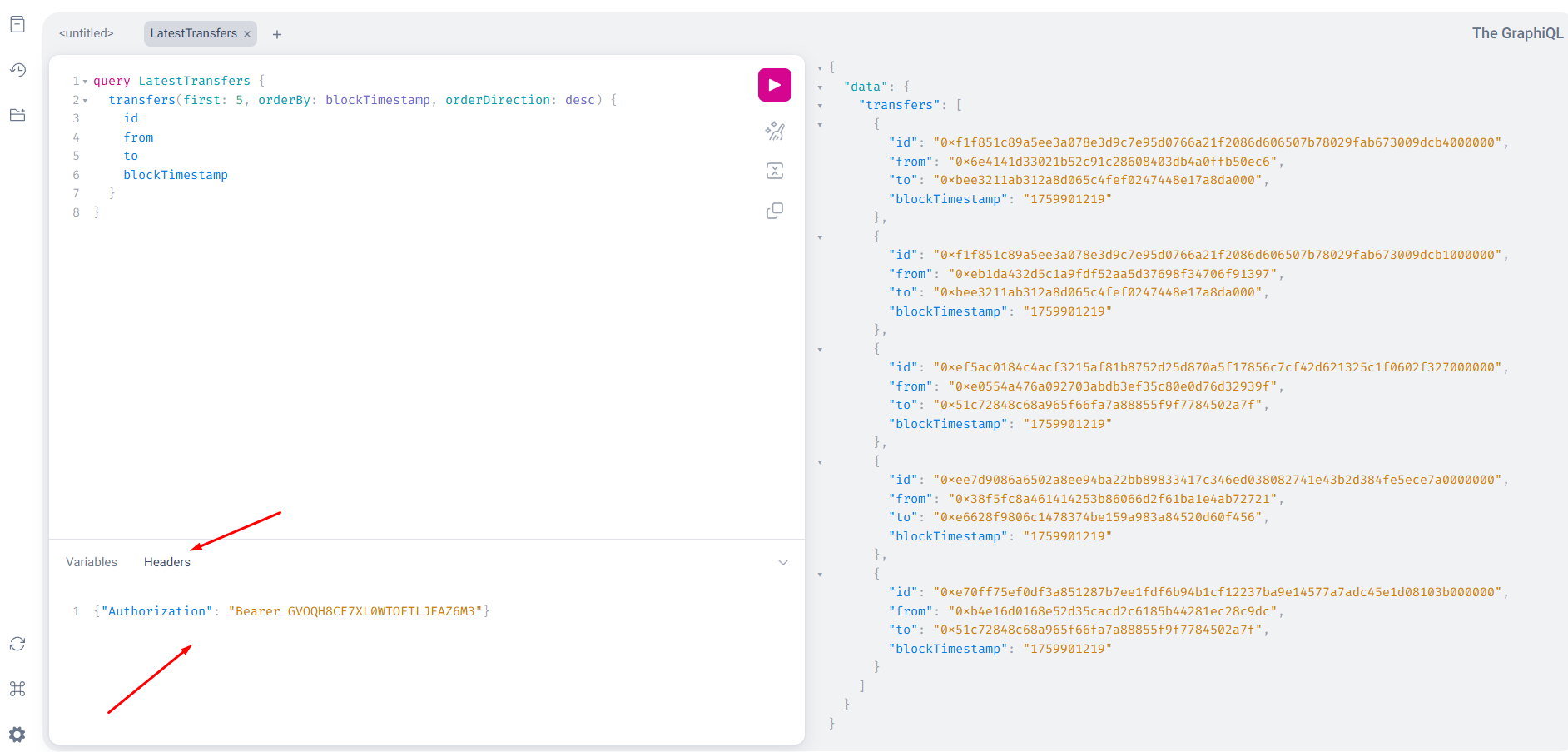 API Keys
By following these steps, you can securely interact with your subgraph using its private GraphQL endpoint.
API Keys
By following these steps, you can securely interact with your subgraph using its private GraphQL endpoint.