> ## Documentation Index
> Fetch the complete documentation index at: https://ormilabs.com/docs/llms.txt
> Use this file to discover all available pages before exploring further.

# How to migrate your subgraph in 3 minutes

> Import an existing subgraph by entering its deployment ID.

<Note>
  If you plan to update or redeploy your subgraph in the future, create and use a tag before you start querying the endpoint.
  [Tags](subgraphs/manage-and-monitor/tags) let you hot-swap new deployments under the same URL later without changing your front-end code.
</Note>

## Before you start

**There are important differences between providers.** Not all subgraph hosting services follow the same conventions.\
Because of this, **one-click migration may fail in certain cases**.

Here are the two main things to check:

### #1. Different IPFS gateways

Some providers use **private IPFS nodes** instead of the default public gateway.

For example:

| Provider                               | Typical IPFS Gateway                |
| -------------------------------------- | ----------------------------------- |
| The Graph Hosted Service               | `https://ipfs.network.thegraph.com` |
| Alchemy Subgraphs (before shutdown)    | `https://ipfs.satsuma.xyz/ipfs/`    |
| Chainstack Subgraphs (before shutdown) | `https://ipfs-graph.p2pify.com/`    |

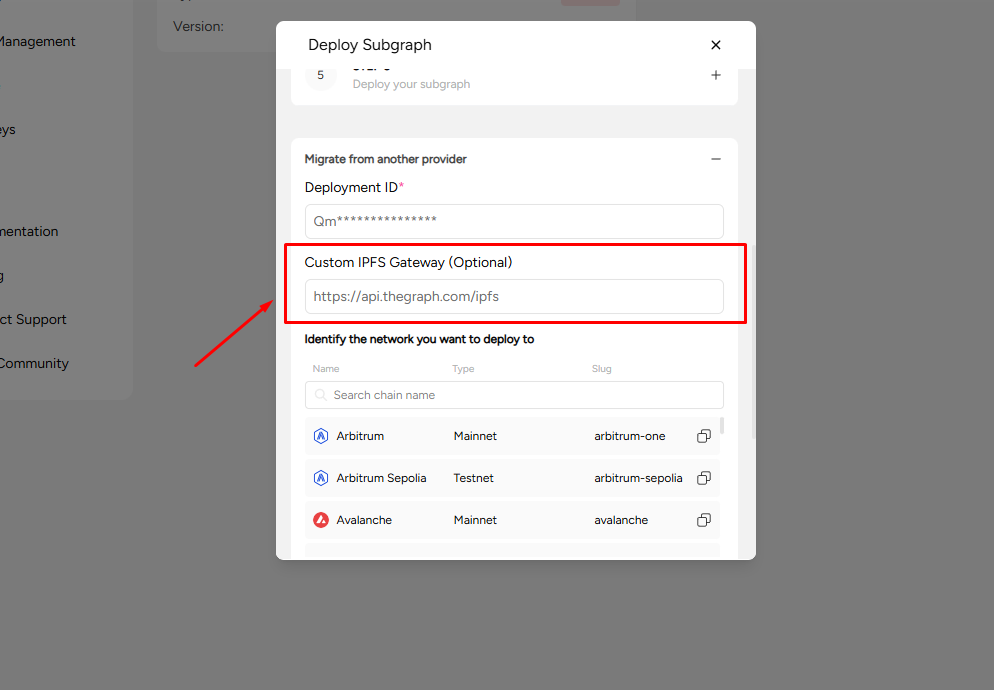
If a subgraph was originally deployed using a **private IPFS gateway**, the metadata cannot be fetched from the default public gateway. This prevents one-click migration from pulling the manifest and files.

### Solution

Use the **Custom IPFS Gateway** field in the migration form, and enter the gateway used by the previous provider.

<Frame>
  <img src="https://mintcdn.com/ormilabs/kABuCqQkvICMVA9u/images/how-to/ipfs-gateway.png?fit=max&auto=format&n=kABuCqQkvICMVA9u&q=85&s=1b40505c95560591f8f217f60d957a9d" alt="Custom IPFS gateway" width="994" height="690" data-path="images/how-to/ipfs-gateway.png" />

  <figcaption>IPFS gateway</figcaption>
</Frame>

### #2. Different network naming conventions

Subgraph hosting platforms sometimes label the same chain differently:

| Chain        | Possible Provider Names |
| ------------ | ----------------------- |
| Polygon      | `matic`, `polygon`      |
| Gnosis Chain | `xdai`, `gnosis`        |
| Base         | `base`, `base-mainnet`  |
| Ethereum     | `mainnet`, `ethereum`   |

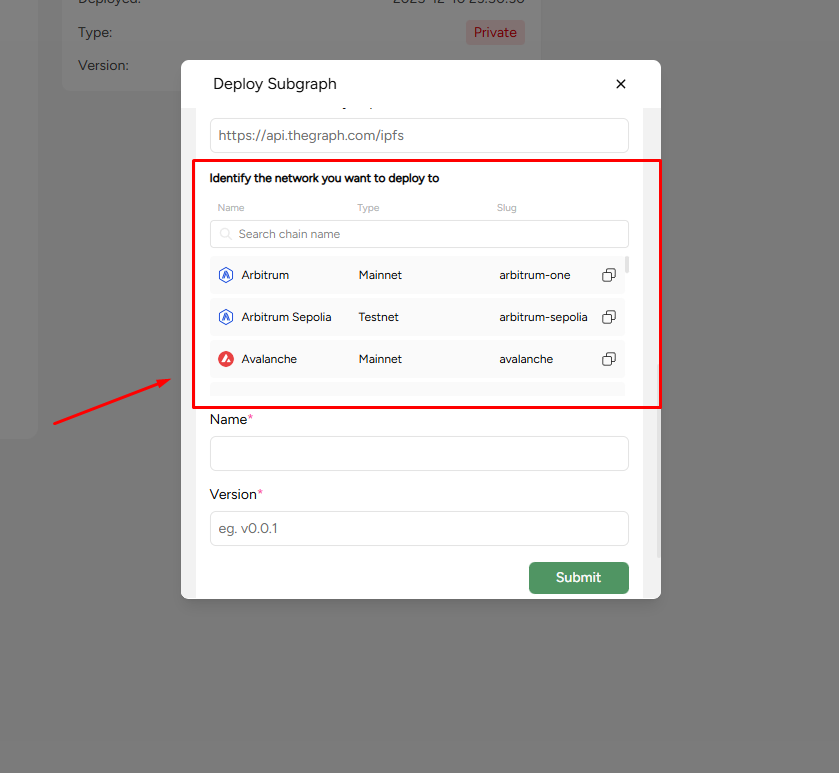
If the chain name in the original deployment **does not match Ormi’s naming**, the one-click migration will not know which chain to sync against.

### Solution

<Frame>
  <img src="https://mintcdn.com/ormilabs/ccADIIdK9gpcVTbj/images/how-to/migration-network.png?fit=max&auto=format&n=ccADIIdK9gpcVTbj&q=85&s=73a702e2475c1f2021f1bdd474e44608" alt="network identification" width="839" height="773" data-path="images/how-to/migration-network.png" />

  <figcaption>network identification</figcaption>
</Frame>

First, confirm the naming convention on Ormi.

You can see the network slug in the one-click migration feature under **Identify the network you want to deploy to** or in our [**Supported Chains page**](supported-chains/subgraphs).

Afterwards, you will have to manually deploy using the CLI and update the network name in `subgraph.yaml` to match Ormi’s expected chain ID.

We recommend this if your migration errors mention:

* invalid network
* mismatch in chain ID
* unsupported network name

To manually deploy via CLI, please check out our [**Deploy subgraphs via CLI guide**](subgraphs/deploy-a-subgraph/deploy-subgraphs-via-cli).

## Getting started

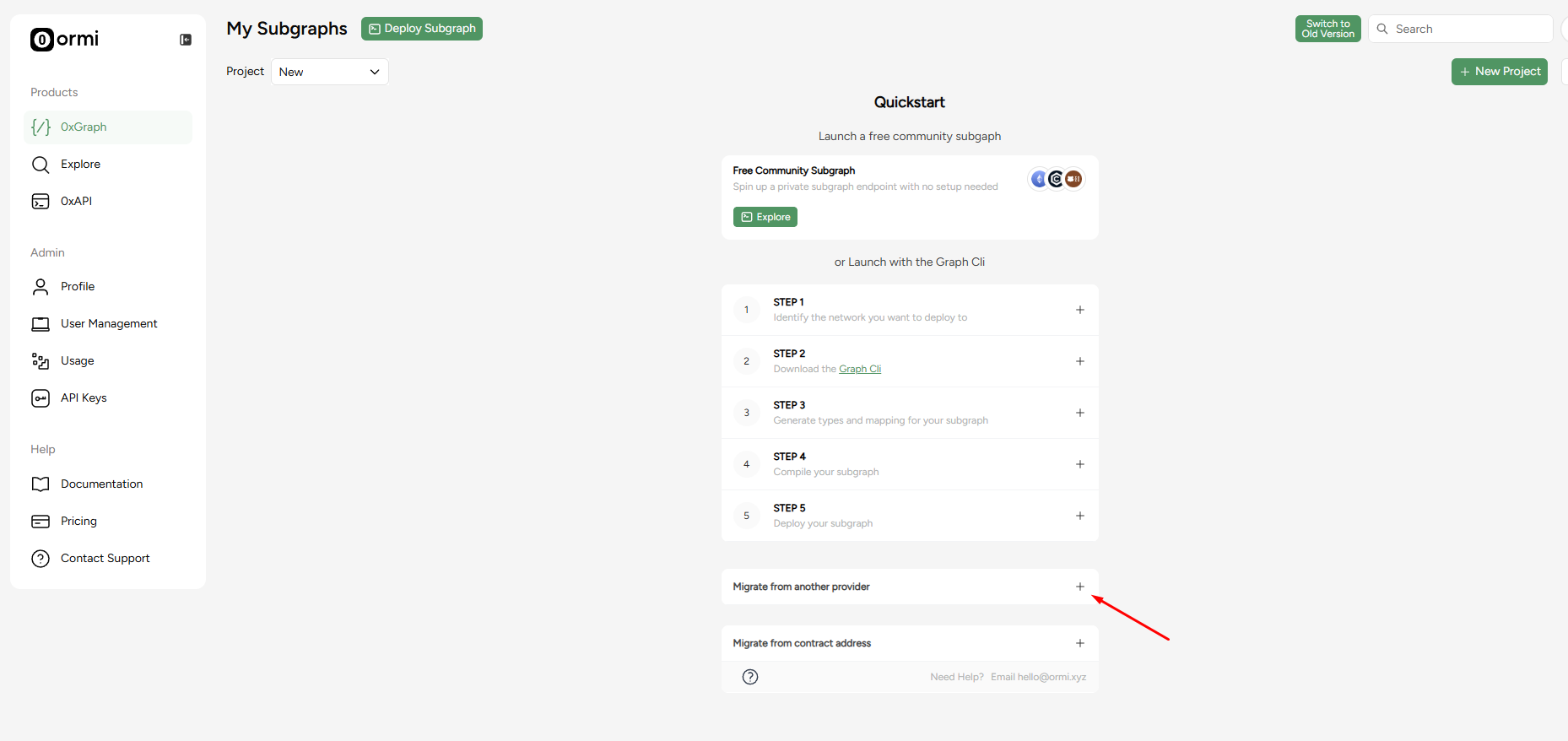
1. In the Ormi dashboard, click **0xGraph**
2. Expand the **Migrate from another provider** section

<Frame>
  <img src="https://mintcdn.com/ormilabs/vcU9W8gg4MUmMgRt/images/how-to/migrate-subgraph.png?fit=max&auto=format&n=vcU9W8gg4MUmMgRt&q=85&s=e3586951202bb2d89233186952598057" alt="0xGraph graph init" width="1858" height="878" data-path="images/how-to/migrate-subgraph.png" />

  <figcaption>API Keys</figcaption>
</Frame>

**Note**: If you already deployed a subgraph, click on **Deploy Subgraph** for the window to pop up.

**Keep this tab open.** We'll come back to this part in a moment.

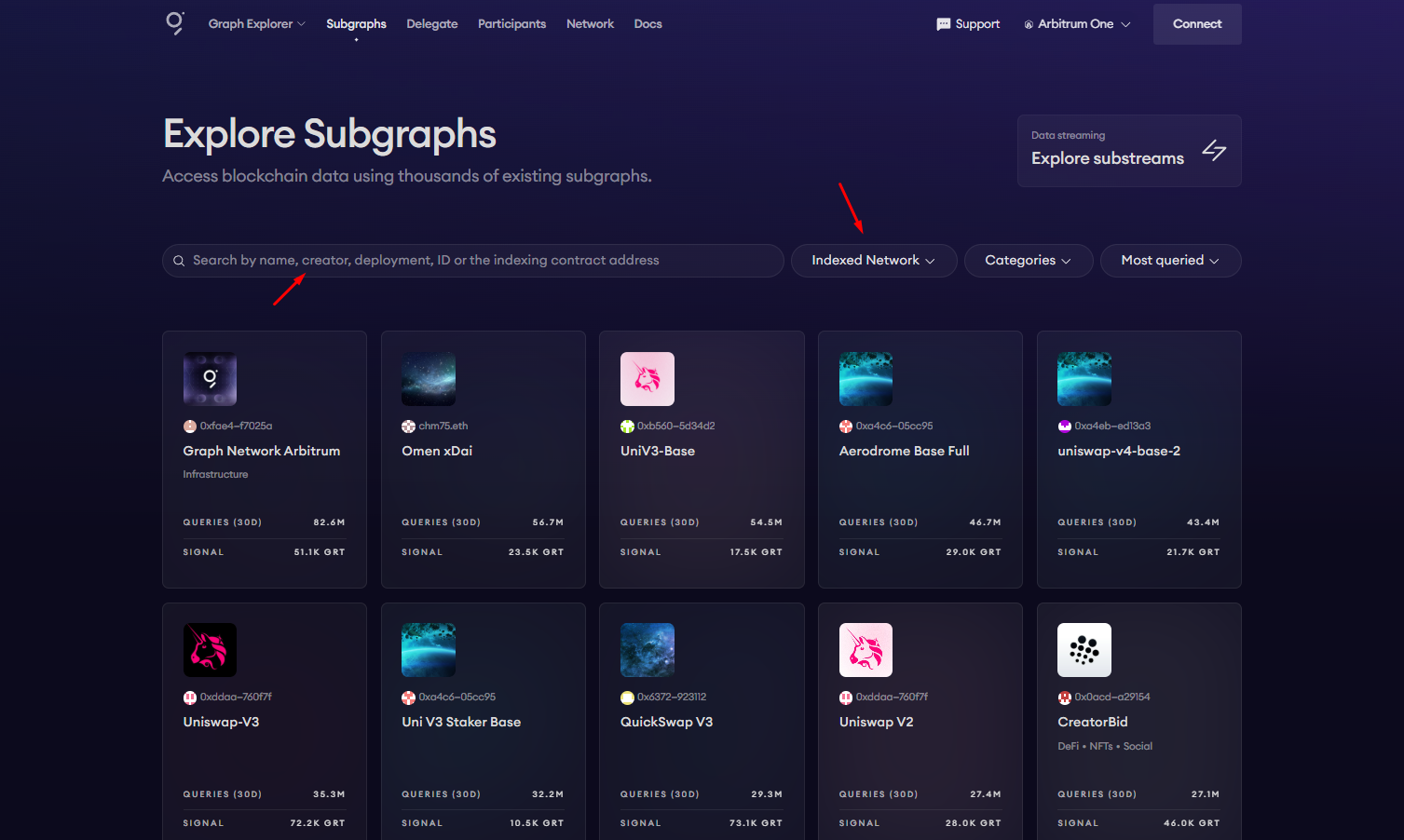
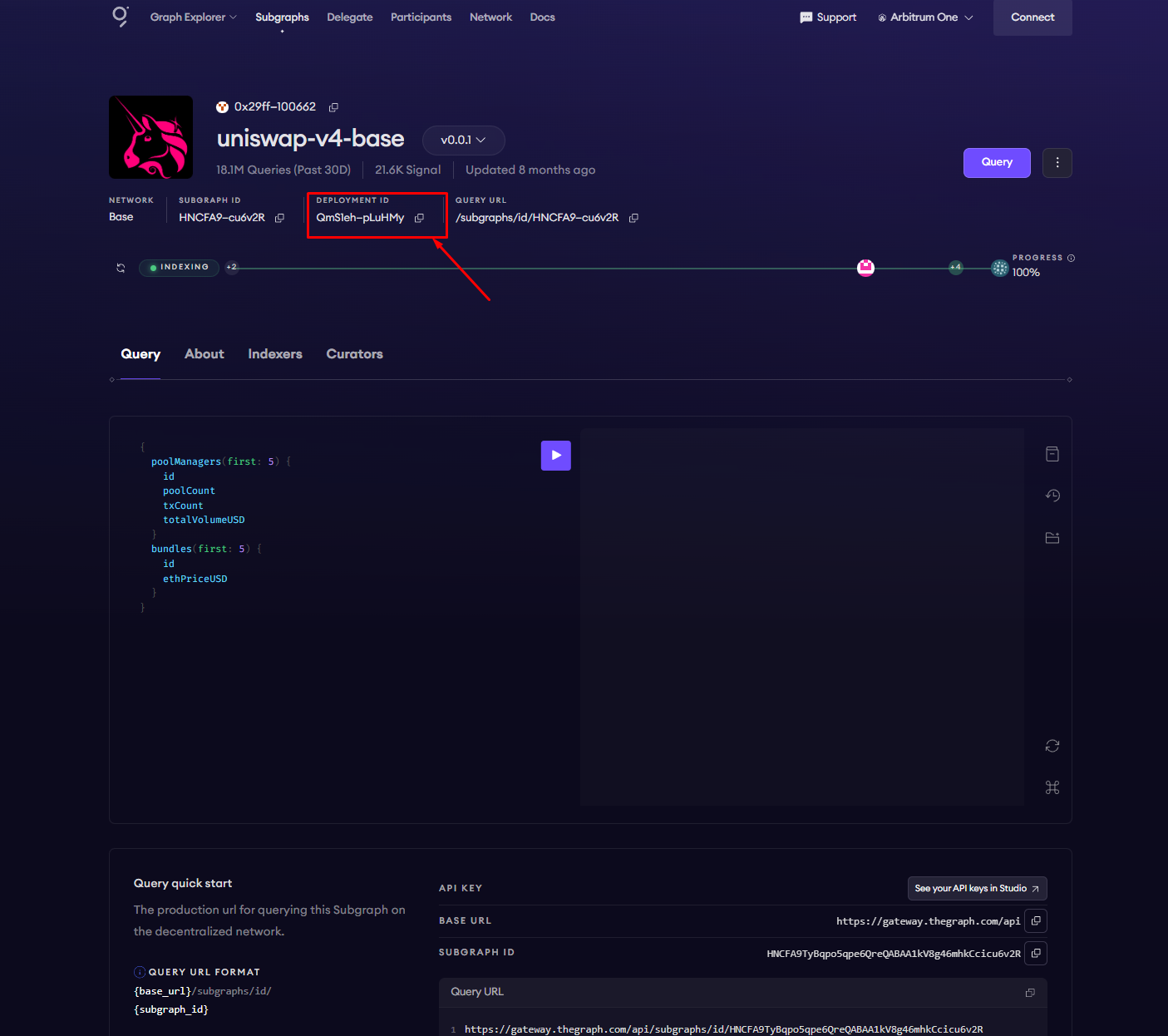
## How to find the deployment ID using [The Graph Explorer](https://thegraph.com/explorer)

<Frame>
  <img src="https://mintcdn.com/ormilabs/vcU9W8gg4MUmMgRt/images/how-to/migrate-subgraph2.png?fit=max&auto=format&n=vcU9W8gg4MUmMgRt&q=85&s=07dd8d80563747ffb435050d62e1c48c" alt="0xGraph graph init" width="1507" height="902" data-path="images/how-to/migrate-subgraph2.png" />

  <figcaption>API Keys</figcaption>
</Frame>

### Find the subgraph you want to migrate and copy the deployment ID

In this guide, we'll be migrating **Uniswap v4 on Base Chain from TheGraph**.

<Frame>
  <img src="https://mintcdn.com/ormilabs/vcU9W8gg4MUmMgRt/images/how-to/migrate-subgraph3.png?fit=max&auto=format&n=vcU9W8gg4MUmMgRt&q=85&s=de0d8eb5539d8fe859ee5292d7d274f0" alt="0xGraph graph init" width="1405" height="1246" data-path="images/how-to/migrate-subgraph3.png" />

  <figcaption>API Keys</figcaption>
</Frame>

## Head back to the 0xGraph page

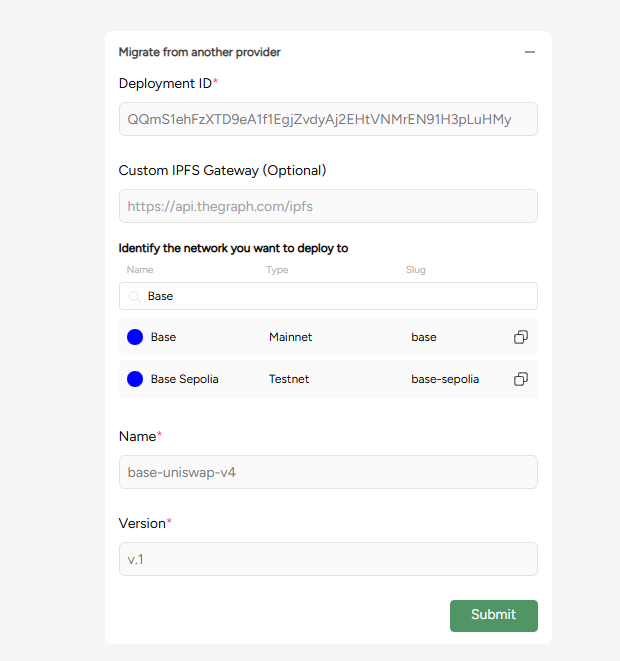
Complete the required fields in the **Migrate from another provider** section

<Frame>
  <img src="https://mintcdn.com/ormilabs/vcU9W8gg4MUmMgRt/images/how-to/migrate-subgraph4.png?fit=max&auto=format&n=vcU9W8gg4MUmMgRt&q=85&s=cee77544fb2a0d1a03fda6a63bbe3d2b" alt="0xGraph graph init" width="620" height="661" data-path="images/how-to/migrate-subgraph4.png" />

  <figcaption>API Keys</figcaption>
</Frame>

1. **Deployment ID**: QQmS1ehFzXTD9eA1f1EgjZvdyAj2EHtVNMrEN91H3pLuHMy
2. **Network**: Base
3. **Name**: base-uniswap-v4
4. **Version**: v.1

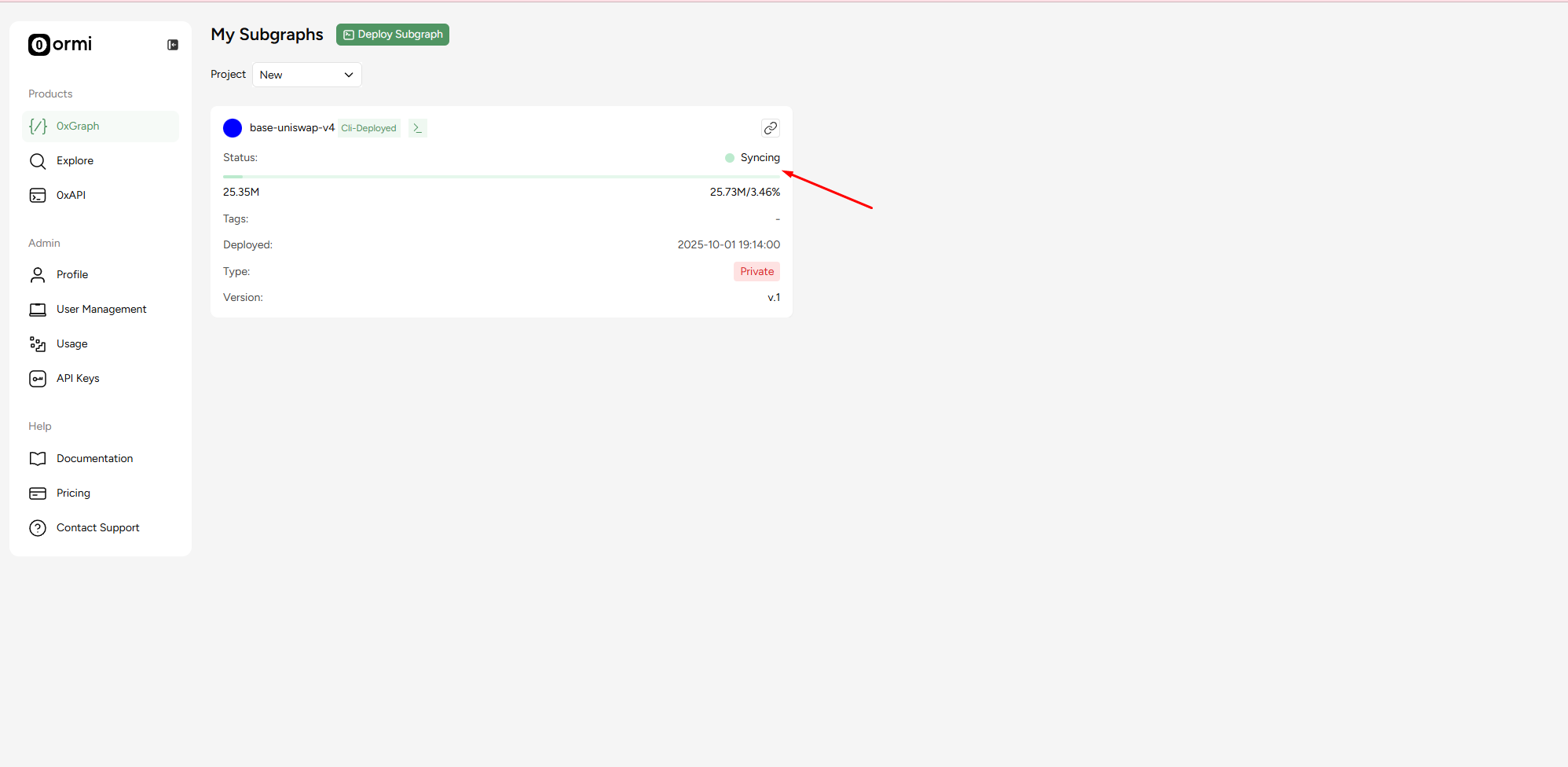
After entering these details, you’ll be redirected to the 0xGraph dashboard, where your subgraph will start syncing automatically.

<Frame>
  <img src="https://mintcdn.com/ormilabs/vcU9W8gg4MUmMgRt/images/how-to/migrate-subgraph5.png?fit=max&auto=format&n=vcU9W8gg4MUmMgRt&q=85&s=66512bf2680e465fad482101623c231f" alt="0xGraph graph init" width="1996" height="976" data-path="images/how-to/migrate-subgraph5.png" />

  <figcaption>API Keys</figcaption>
</Frame>

That’s it! Once your subgraph syncs, you’ll be able to query data directly through Ormi’s 0xGraph.

## If migration fails

If you run into errors during migration, it is usually caused by either:

* **A private IPFS gateway** used by the original provider
* **A network naming mismatch**

In these cases, follow our manual deployment guide:

-> [Deploy via CLI instead](subgraphs/deploy-a-subgraph/deploy-subgraphs-via-cli)

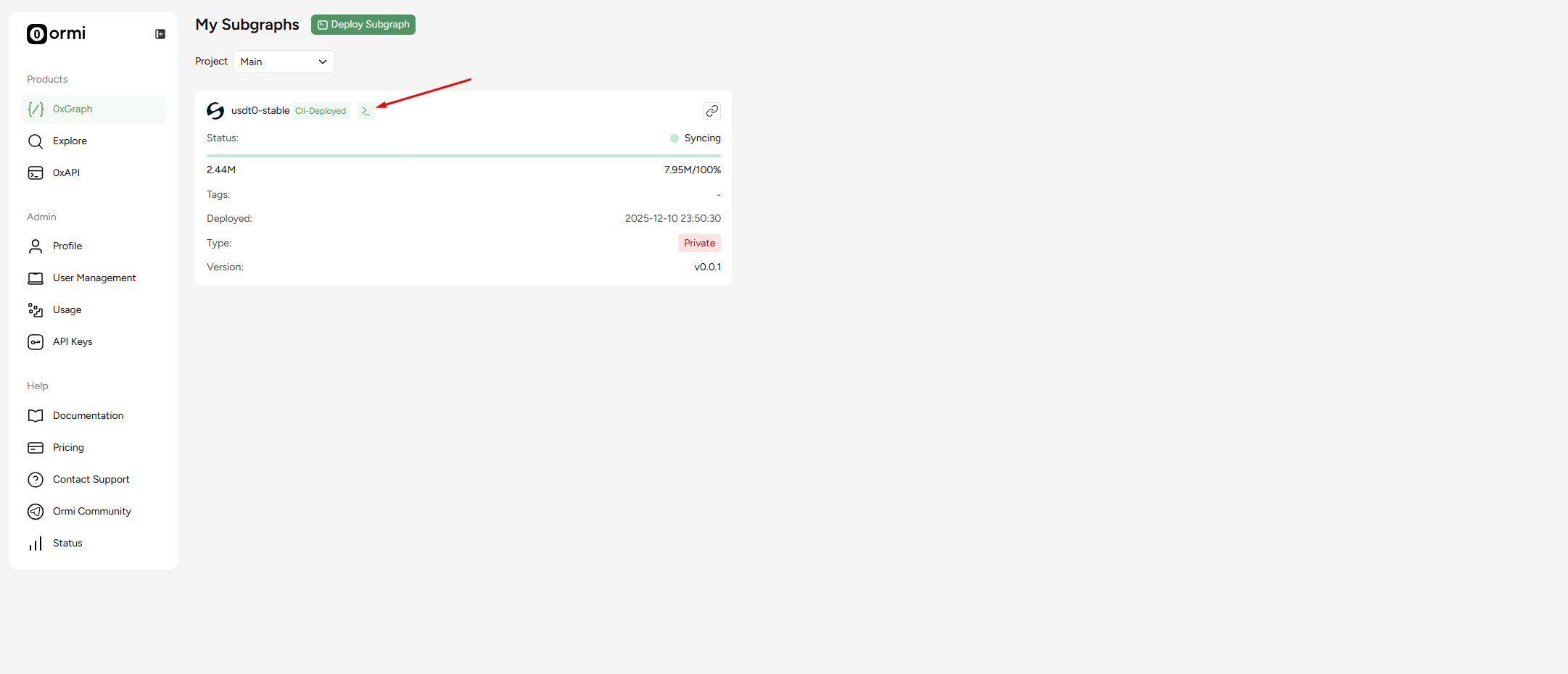
## How to access your Subgraph endpoint

### Step #1: Click on the `>_` icon

<Frame>
  <img src="https://mintcdn.com/ormilabs/XEL8aVMOSaZH2cuR/images/0xgraph/endpoint-access.png?fit=max&auto=format&n=XEL8aVMOSaZH2cuR&q=85&s=8e96ed2d672e05251be8da9770450c3c" alt="endpoint-access" width="2162" height="930" data-path="images/0xgraph/endpoint-access.png" />

  <figcaption>endpoint access</figcaption>
</Frame>

## Next steps

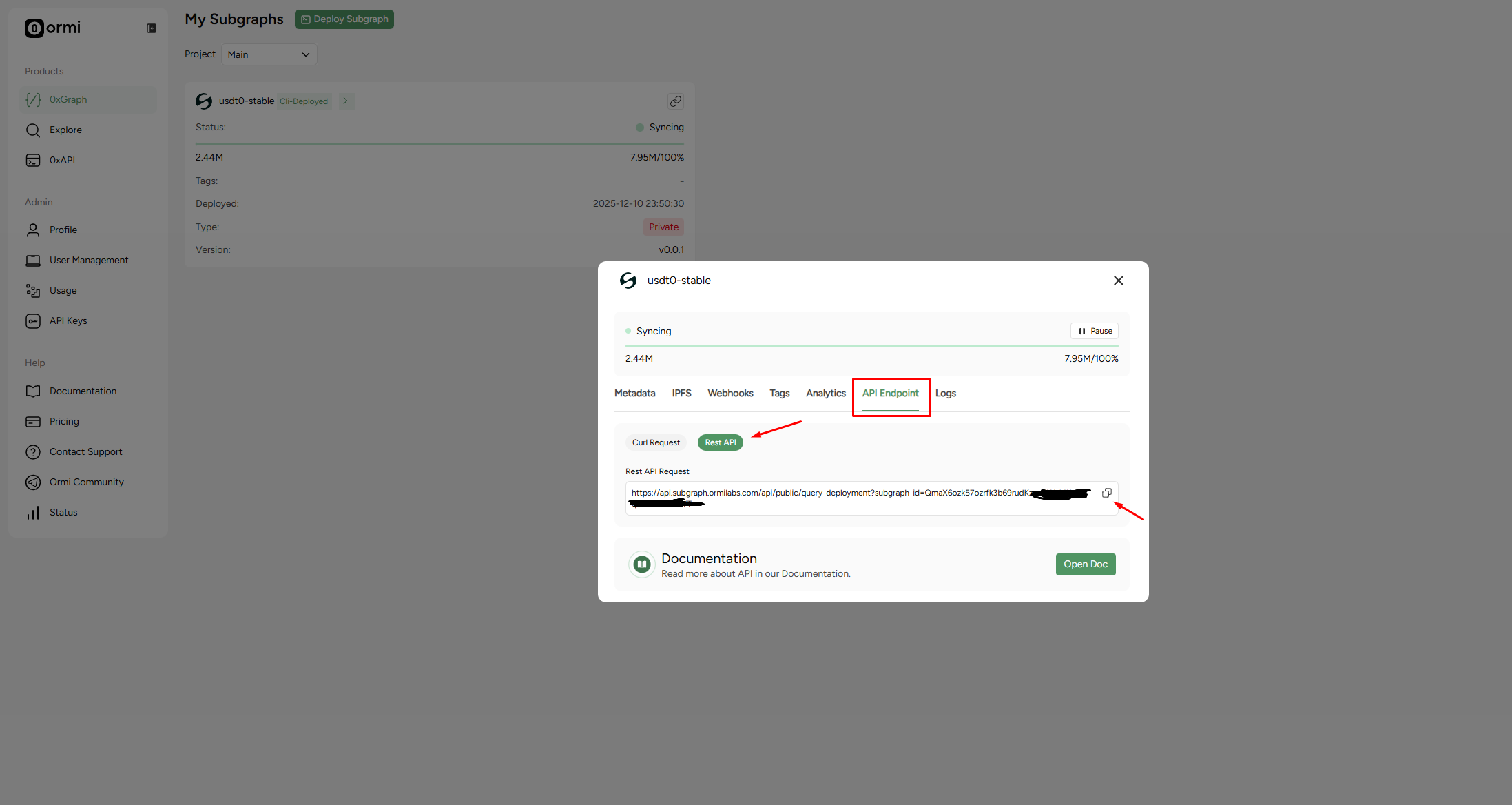
1. Click on **API Endpoint**
2. Press **Rest API**
3. Copy URL

<Frame>
  <img src="https://mintcdn.com/ormilabs/XEL8aVMOSaZH2cuR/images/0xgraph/endpoint-access2.png?fit=max&auto=format&n=XEL8aVMOSaZH2cuR&q=85&s=826071b1abb801feaec154427be43fc9" alt="endpoint-access-api" width="2195" height="1168" data-path="images/0xgraph/endpoint-access2.png" />

  <figcaption>REST API</figcaption>
</Frame>

<div
  className="grid grid-cols-1 md:grid-cols-2 gap-6 not-prose"
  style={{
marginBottom: '4rem',
maxWidth: '1200px',
margin: '0 auto 4rem auto',
alignItems: 'stretch'
}}
>
  <a
    href="/docs/subgraphs/query-data/querying-a-subgraph"
    style={{
textDecoration: 'none',
color: 'inherit',
display: 'flex'
}}
  >
    <div
      className="group border border-gray-200 rounded-xl p-6 hover:border-green-500 hover:shadow-lg transition-all duration-200 cursor-pointer"
      style={{
  minHeight: '200px',
  display: 'flex',
  flexDirection: 'column',
  width: '100%'
}}
    >
      <div className="flex items-center mb-4">
        <div className="mr-3" style={{ color: '#3E744D' }}>
          <img src="https://mintcdn.com/ormilabs/qV2VfGqVCCe99Ked/images/icons/scan.svg?fit=max&auto=format&n=qV2VfGqVCCe99Ked&q=85&s=e45e14abccf8d0fec7df137623baa1ab" alt="query subgraph icon" width="20" height="20" data-path="images/icons/scan.svg" />
        </div>

        <div className="text-lg font-semibold text-gray-900" role="heading" aria-level="3">How to query a subgraph</div>
      </div>

      <p className="text-gray-600 text-sm flex-grow">
        Learn how to run GraphQL queries to fetch smart contract data from deployed subgraphs.
      </p>
    </div>
  </a>

  {" "}

  <a
    href="/docs/subgraphs/manage-and-monitor/monitor-subgraph"
    style={{
textDecoration: "none",
color: "inherit",
display: "flex",
}}
  >
    <div
      className="group border border-gray-200 rounded-xl p-6 hover:border-green-500 hover:shadow-lg transition-all duration-200 cursor-pointer"
      style={{
  minHeight: "200px",
  display: "flex",
  flexDirection: "column",
  width: "100%",
}}
    >
      <div className="flex items-center mb-4">
        <div className="mr-3" style={{ color: "#3E744D" }}>
          <img src="https://mintcdn.com/ormilabs/qV2VfGqVCCe99Ked/images/icons/monitor-check.svg?fit=max&auto=format&n=qV2VfGqVCCe99Ked&q=85&s=4955d6d9d247161fb8fe84ae89ce1203" alt="monitor subgraph icon" width="20" height="20" data-path="images/icons/monitor-check.svg" />
        </div>

        <div className="text-lg font-semibold text-gray-900" role="heading" aria-level="3">
          How to monitor your subgraph
        </div>
      </div>

      <p className="text-gray-600 text-sm flex-grow">Learn how to monitor your subgraph syncing progress and logs after deployment.</p>
    </div>
  </a>
</div>
