> ## Documentation Index
> Fetch the complete documentation index at: https://ormilabs.com/docs/llms.txt
> Use this file to discover all available pages before exploring further.

# How to deploy a no-code subgraph in 5 minutes

> All you need is the smart contract address

<Note>
  If you plan to update or redeploy your subgraph in the future, create and use a tag before you start querying the endpoint.
  [Tags](/subgraphs/manage-and-monitor/tags) let you hot-swap new deployments under the same URL later without changing your front-end code.
</Note>

## Getting started

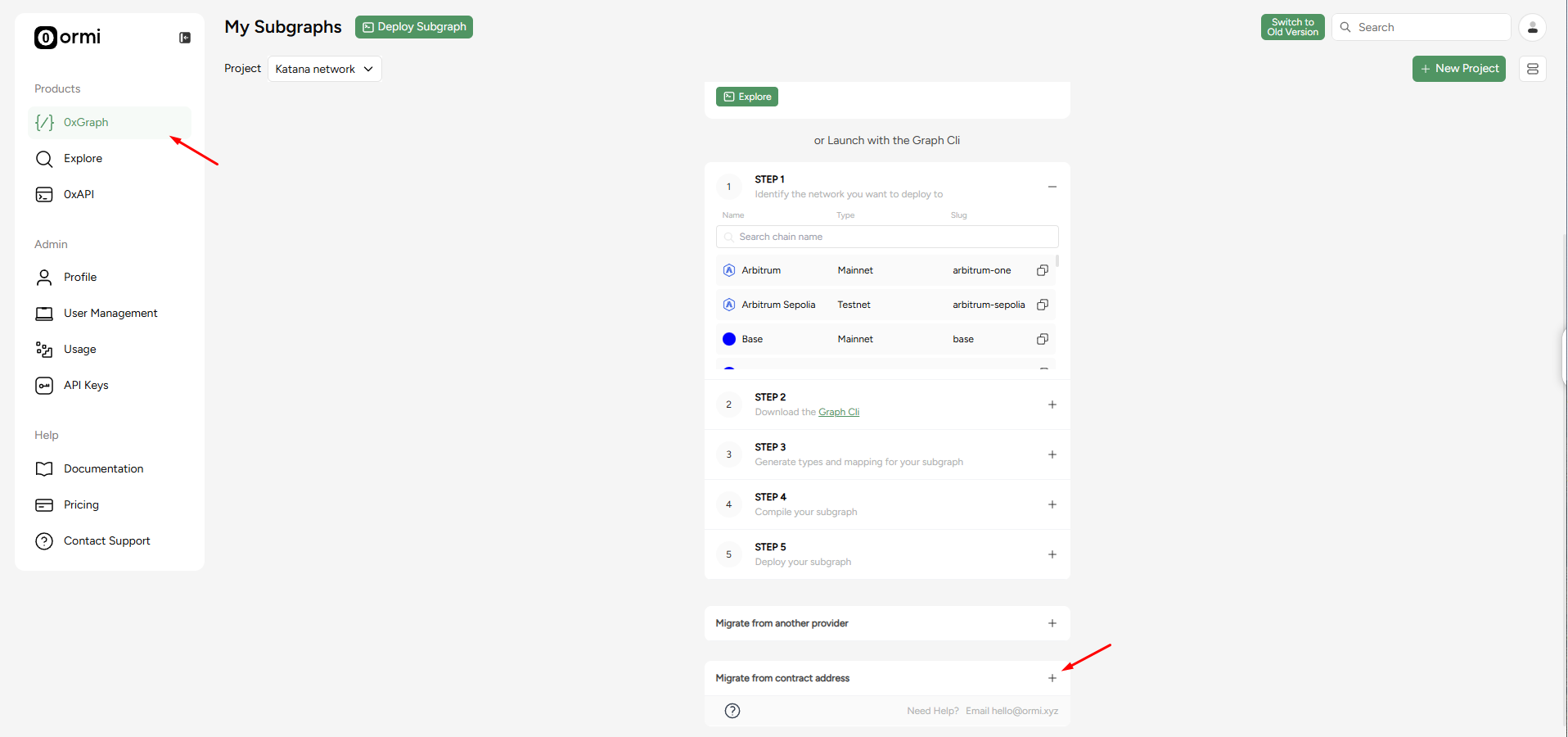
1. In the Ormi dashboard, click 0xGraph
2. Expand the **Migrate from contract address** section

<Frame>
  <img src="https://mintcdn.com/ormilabs/XdTpJ0jGUKw4Ynly/images/how-to/no-code-screen.png?fit=max&auto=format&n=XdTpJ0jGUKw4Ynly&q=85&s=7b1c464c55ece20d1a18fe98b1e4d307" alt="0xGraph graph init" width="1916" height="900" data-path="images/how-to/no-code-screen.png" />

  <figcaption>API Keys</figcaption>
</Frame>

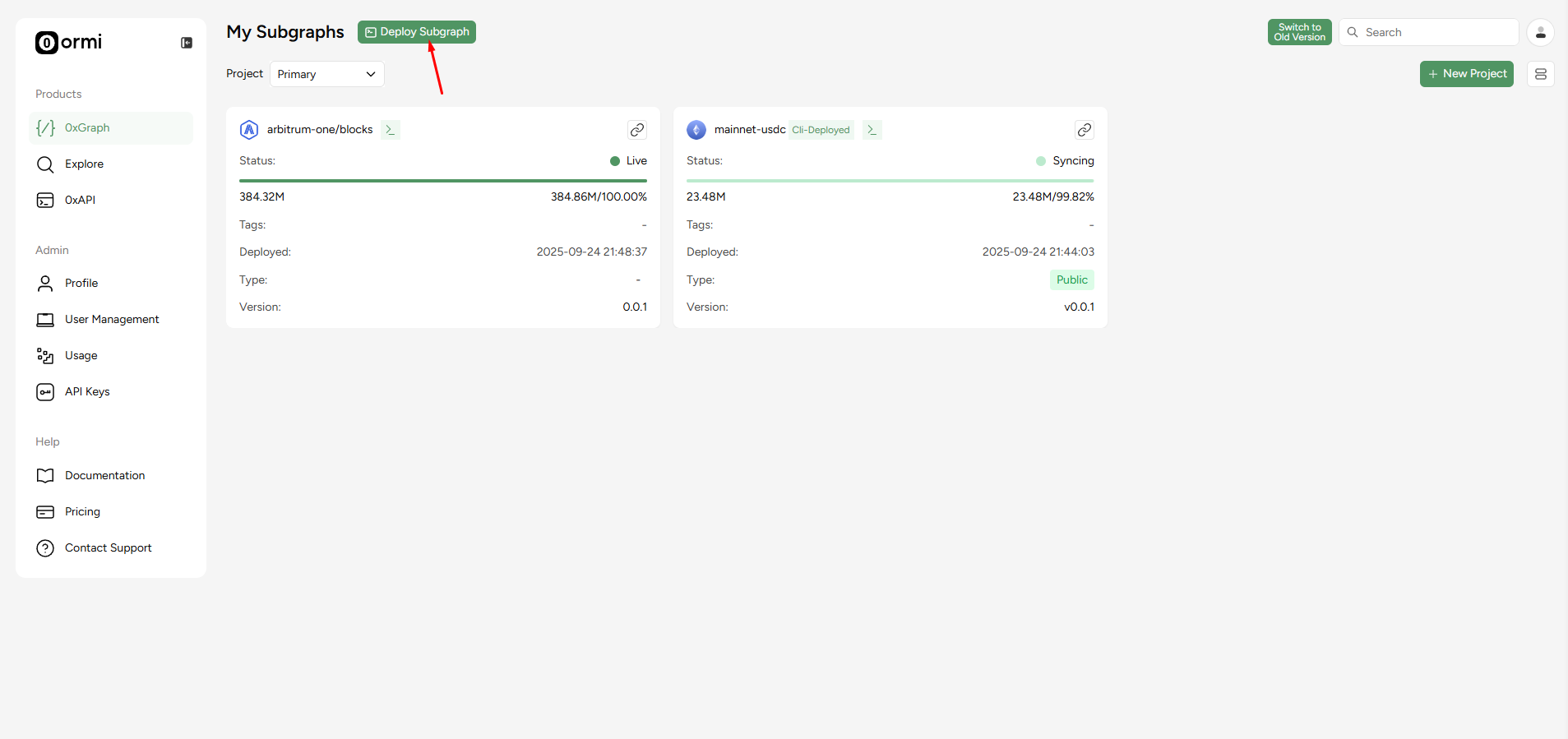
**Note**: If you already deployed a subgraph, click on **Deploy Subgraph** for the window to pop up.

<Frame>
  <img src="https://mintcdn.com/ormilabs/XdTpJ0jGUKw4Ynly/images/how-to/no-code-new.png?fit=max&auto=format&n=XdTpJ0jGUKw4Ynly&q=85&s=bdbdf739e085558ad7d67a161f55f88e" alt="0xGraph graph init" width="1907" height="899" data-path="images/how-to/no-code-new.png" />

  <figcaption>API Keys</figcaption>
</Frame>

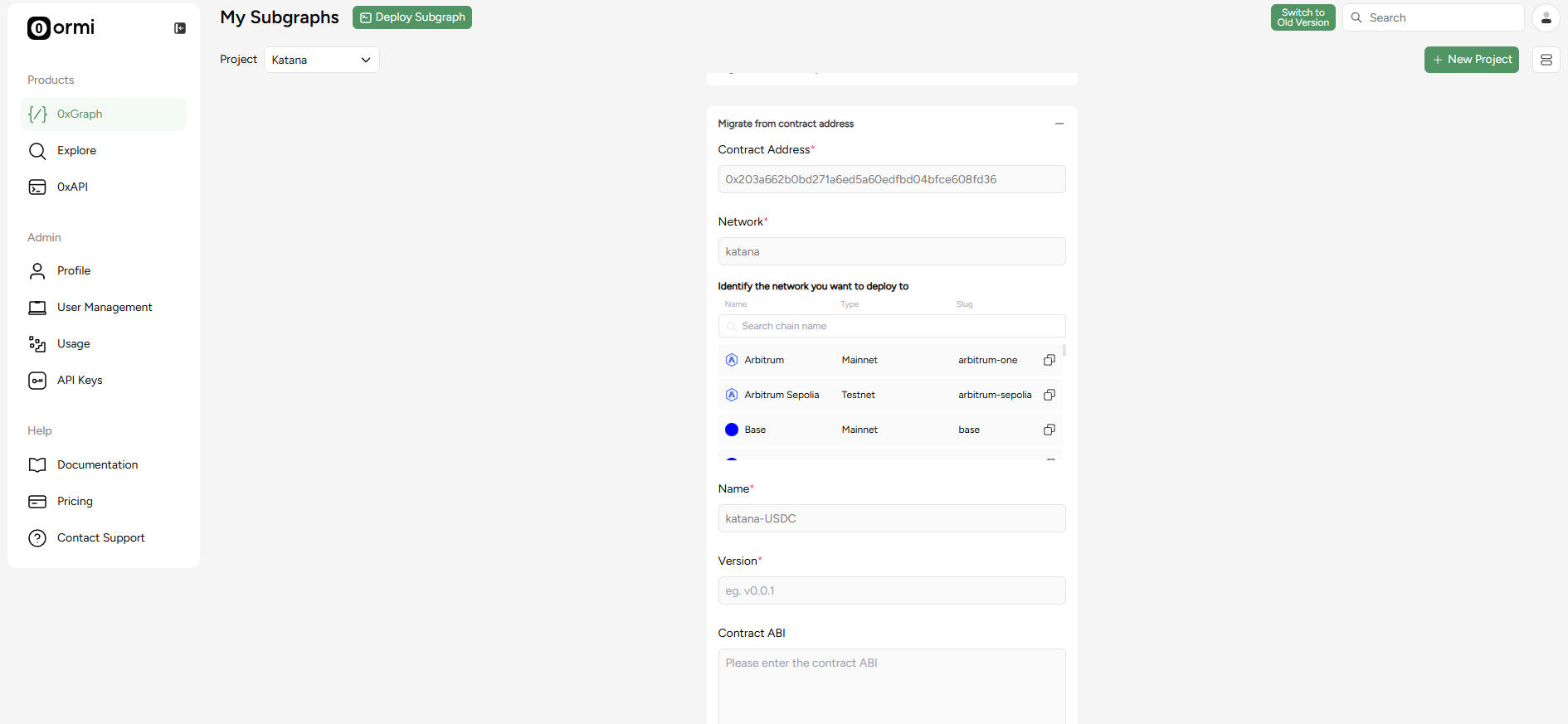
For this example, we’ll use VaultBridge’s Bridged USDC:

* **Contract address**: 0x203A662b0BD271A6ed5a60EdFbd04bFce608FD36
* **Network**: Katana
* **Name**: katana-vbusdc
* **Version**: v.1

<Frame>
  <img src="https://mintcdn.com/ormilabs/XdTpJ0jGUKw4Ynly/images/how-to/no-code-screen2.png?fit=max&auto=format&n=XdTpJ0jGUKw4Ynly&q=85&s=86b96b825250dc7b77ce67579c46ac59" alt="0xGraph graph init" width="1890" height="873" data-path="images/how-to/no-code-screen2.png" />

  <figcaption>API Keys</figcaption>
</Frame>

**Note**: If the ABI cannot be auto-fetched, you may need to upload it manually.

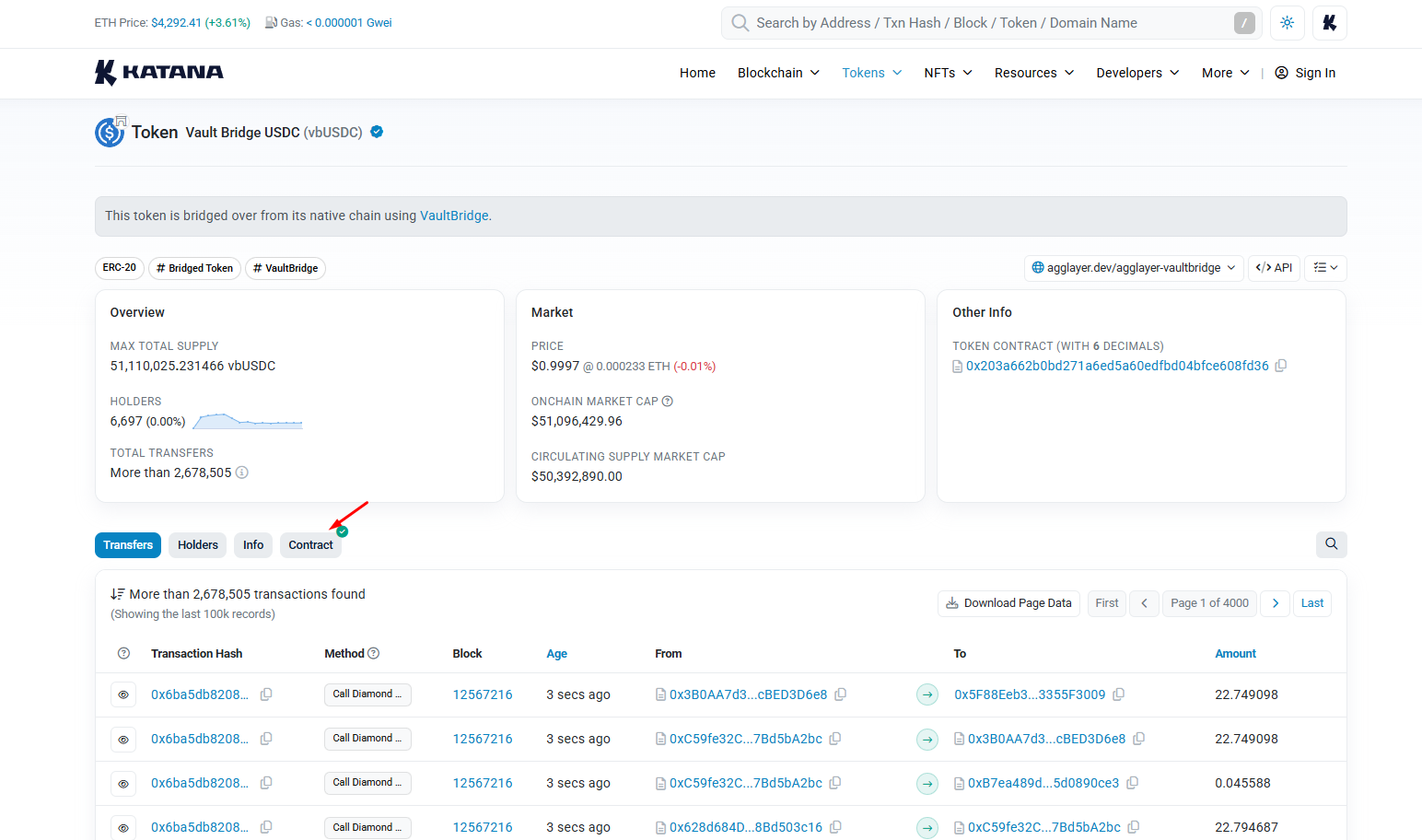
For vbUSD, you will need to fetch the implementation contracts’ ABI, so head over to [Katanascan](https://katanascan.com/token/0x203a662b0bd271a6ed5a60edfbd04bfce608fd36) and search for the vbUSD contract.

## Fetching a contract's ABI

### Click on the **Contract** tab

<Frame>
  <img src="https://mintcdn.com/ormilabs/vcU9W8gg4MUmMgRt/images/how-to/no-code-abi.png?fit=max&auto=format&n=vcU9W8gg4MUmMgRt&q=85&s=2603a34c39e79ce698b8640a71703c3c" alt="0xGraph graph init" width="1544" height="912" data-path="images/how-to/no-code-abi.png" />

  <figcaption>API Keys</figcaption>
</Frame>

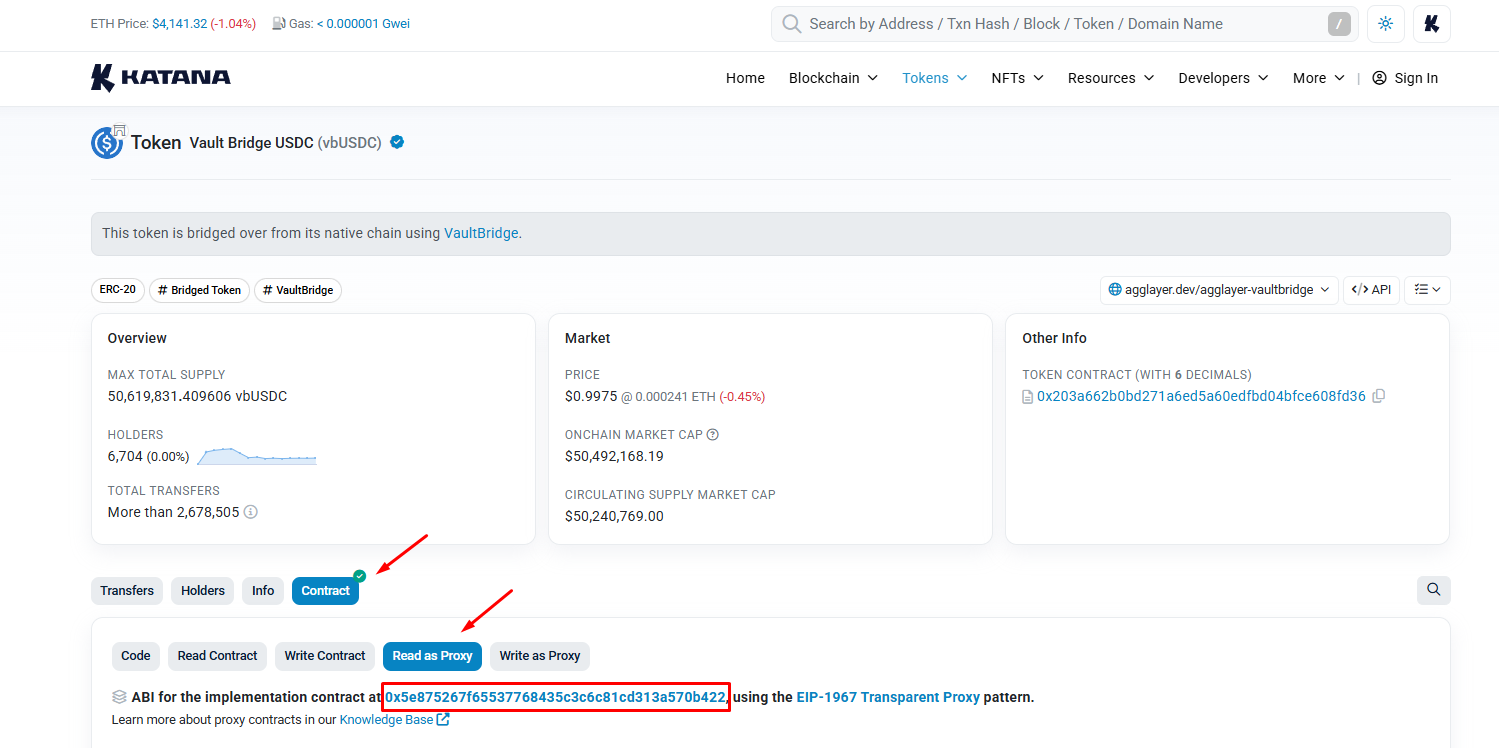
### Click **Read or Write as Proxy** Tab

<Frame>
  <img src="https://mintcdn.com/ormilabs/XdTpJ0jGUKw4Ynly/images/how-to/no-code-abi2.png?fit=max&auto=format&n=XdTpJ0jGUKw4Ynly&q=85&s=a6920f086cf7739b991f8eebfa8a01c1" alt="0xGraph graph init" width="1499" height="748" data-path="images/how-to/no-code-abi2.png" />

  <figcaption>API Keys</figcaption>
</Frame>

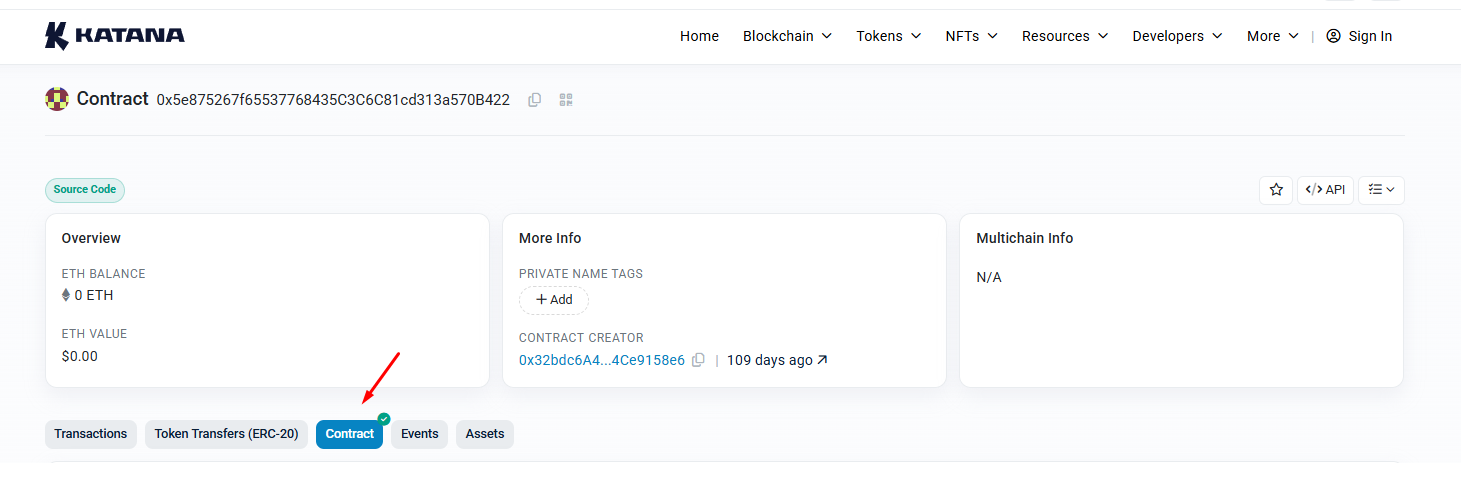
**Implementation contract address**: 0x5e875267f65537768435C3C6C81cd313a570B422

### Click on the implementation contract and press the contract tab

<Frame>
  <img src="https://mintcdn.com/ormilabs/XdTpJ0jGUKw4Ynly/images/how-to/no-code-abi3.png?fit=max&auto=format&n=XdTpJ0jGUKw4Ynly&q=85&s=d40244621c695f1a56e8d952fe3815d6" alt="0xGraph graph init" width="1461" height="478" data-path="images/how-to/no-code-abi3.png" />

  <figcaption>API Keys</figcaption>
</Frame>

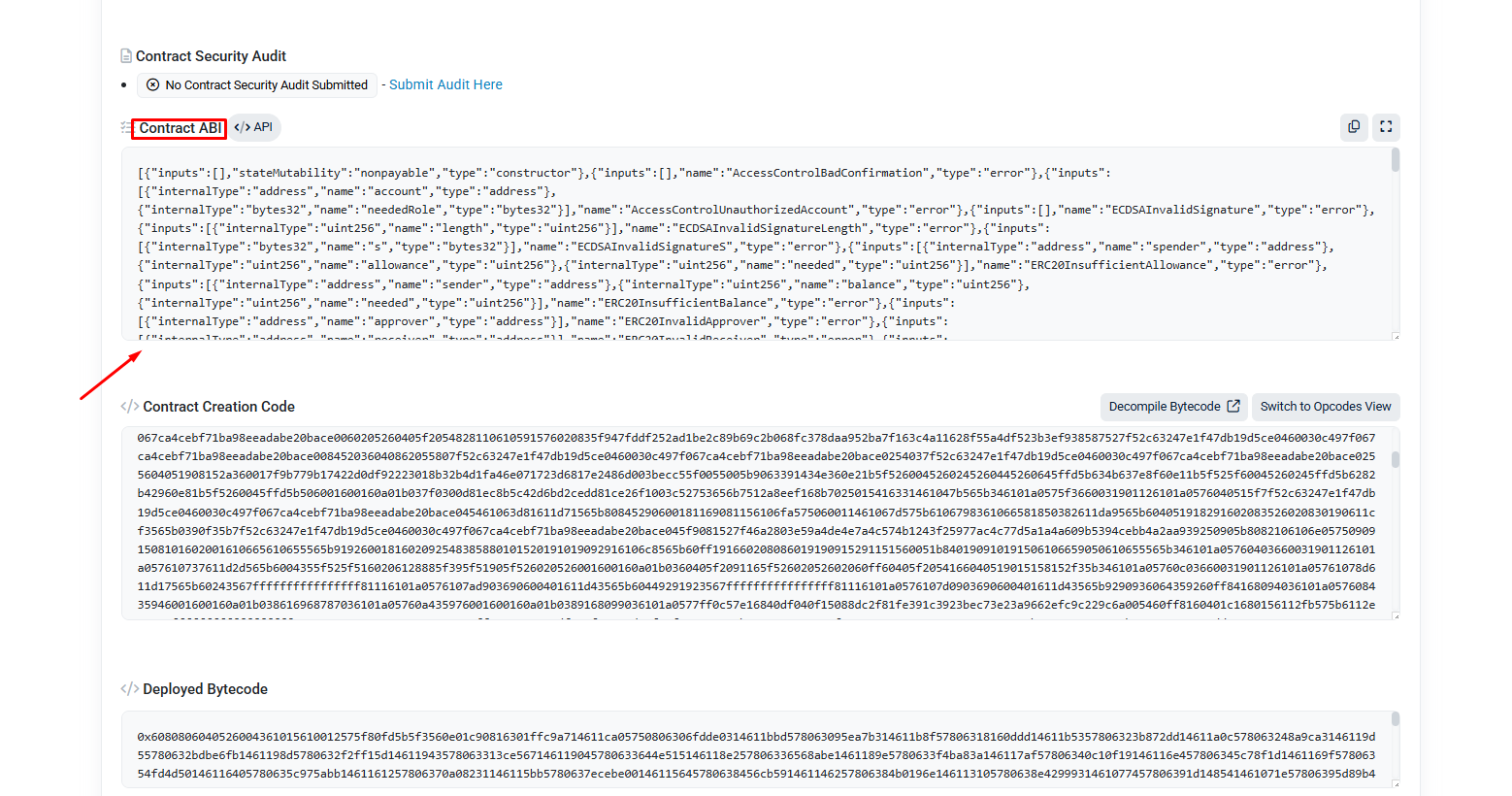
### Scroll down to the bottom, and copy the Contract ABI.

<Frame>
  <img src="https://mintcdn.com/ormilabs/XdTpJ0jGUKw4Ynly/images/how-to/no-code-abi4.png?fit=max&auto=format&n=XdTpJ0jGUKw4Ynly&q=85&s=49e761837de2e955a4733654bfc0d042" alt="0xGraph graph init" width="1558" height="820" data-path="images/how-to/no-code-abi4.png" />

  <figcaption>API Keys</figcaption>
</Frame>

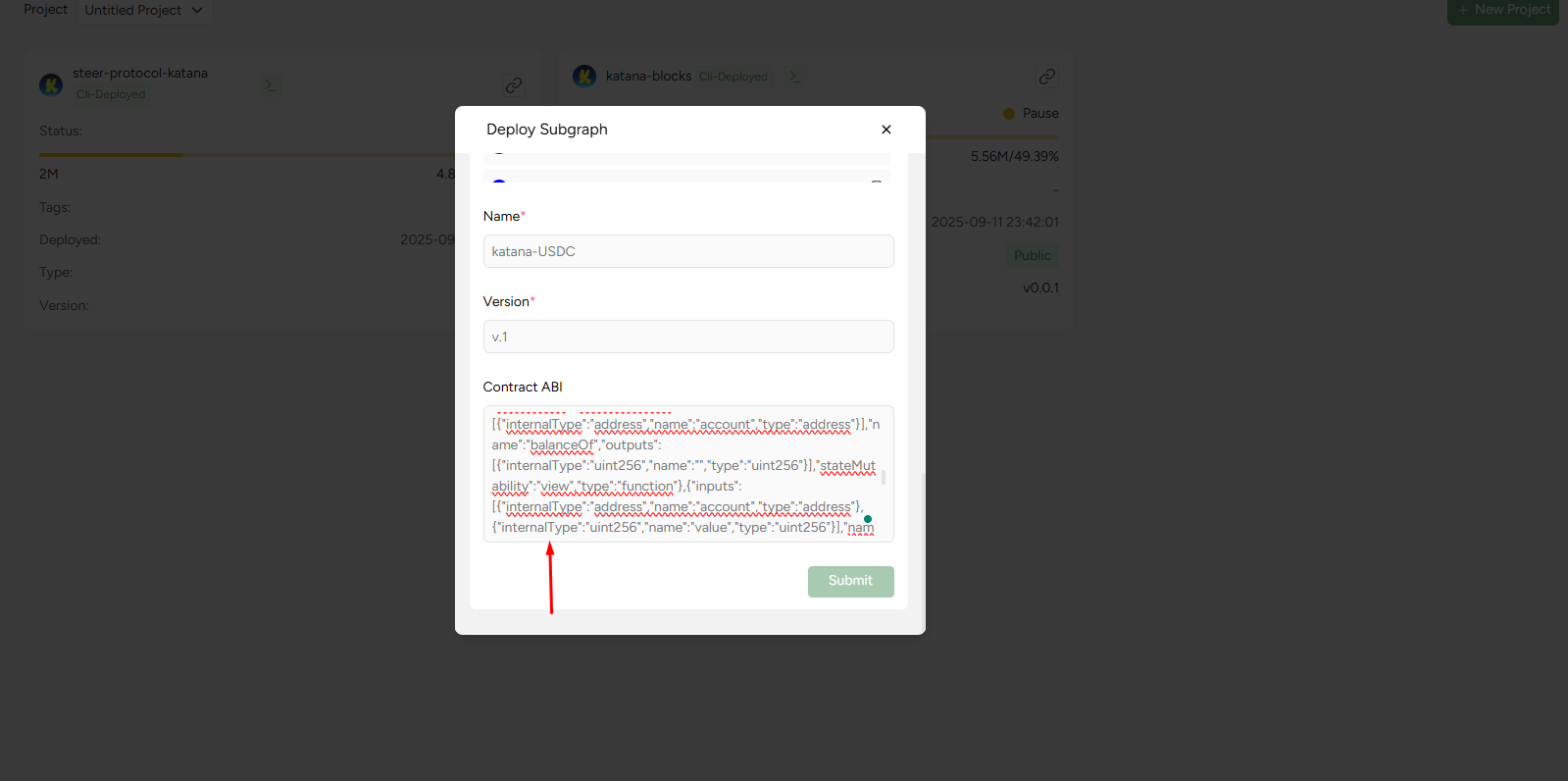
### Paste the Contract ABI into this section and press submit

<Frame>
  <img src="https://mintcdn.com/ormilabs/XdTpJ0jGUKw4Ynly/images/how-to/no-code-abi5.png?fit=max&auto=format&n=XdTpJ0jGUKw4Ynly&q=85&s=e3dfae522367f22cbc7938cf6133b1dd" alt="0xGraph graph init" width="1599" height="796" data-path="images/how-to/no-code-abi5.png" />

  <figcaption>API Keys</figcaption>
</Frame>

Once submitted, the system will process your request. When it finishes loading, you’ll be taken to the next screen.

<Frame>
  <img src="https://mintcdn.com/ormilabs/XdTpJ0jGUKw4Ynly/images/how-to/no-code-screen3.png?fit=max&auto=format&n=XdTpJ0jGUKw4Ynly&q=85&s=1c8a6ead637b052f575d4eeaa395583a" alt="0xGraph graph init" width="1888" height="880" data-path="images/how-to/no-code-screen3.png" />

  <figcaption>API Keys</figcaption>
</Frame>

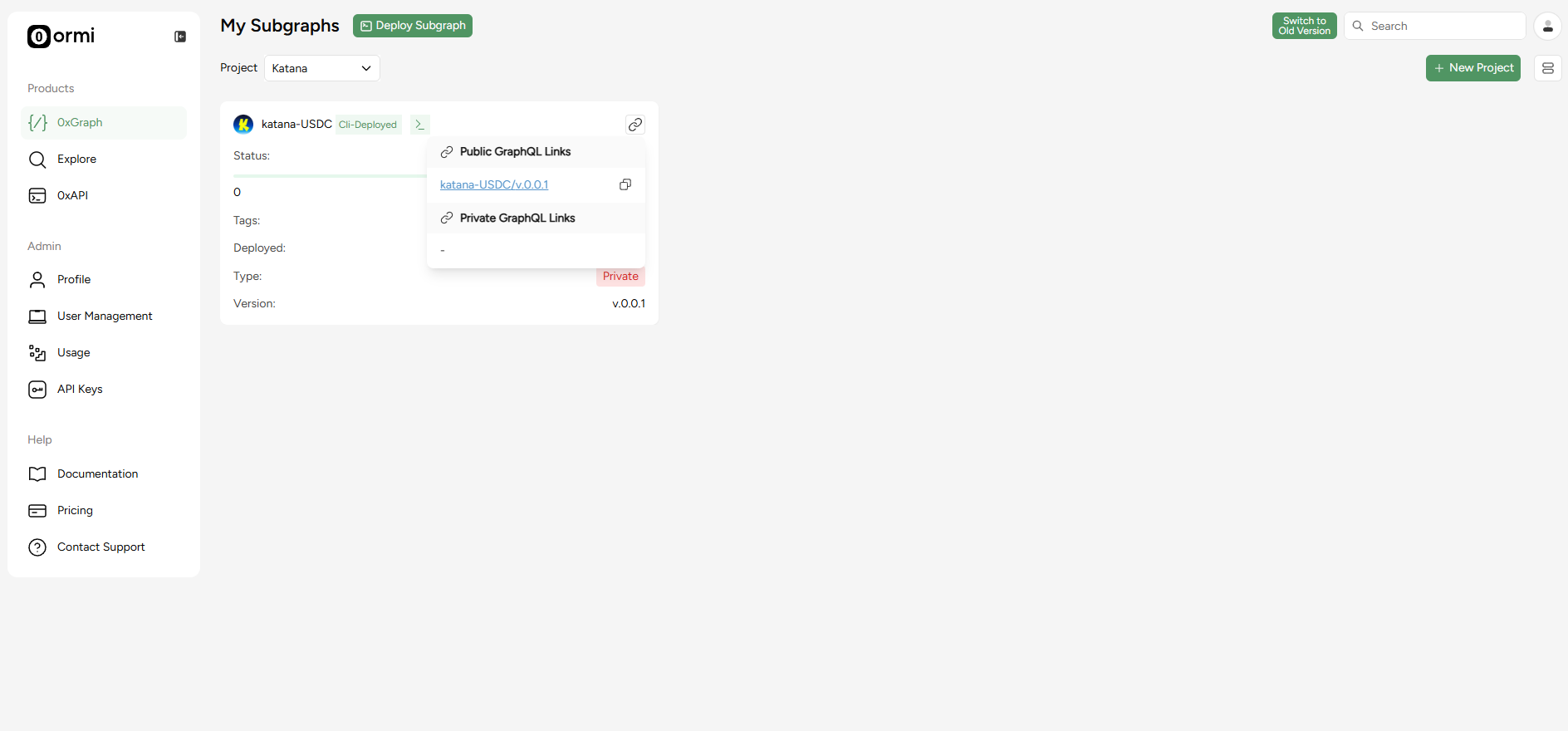
When your subgraph finishes syncing, you can start querying immediately by clicking the graphql link.

## Next steps
<div
  className="grid grid-cols-1 md:grid-cols-2 gap-6 not-prose"
  style={{
marginBottom: '4rem',
maxWidth: '1200px',
margin: '0 auto 4rem auto',
alignItems: 'stretch'
}}
>
  <a
    href="/docs/subgraphs/query-data/querying-a-subgraph"
    style={{
textDecoration: 'none',
color: 'inherit',
display: 'flex'
}}
  >
    <div
      className="group border border-gray-200 rounded-xl p-6 hover:border-green-500 hover:shadow-lg transition-all duration-200 cursor-pointer"
      style={{
  minHeight: '200px',
  display: 'flex',
  flexDirection: 'column',
  width: '100%'
}}
    >
      <div className="flex items-center mb-4">
        <div className="mr-3" style={{ color: '#3E744D' }}>
          <svg xmlns="http://www.w3.org/2000/svg" width="20" height="20" viewBox="0 0 24 24" fill="none" stroke="currentColor" strokeWidth="1.5" strokeLinecap="round" strokeLinejoin="round">
            <path d="M3 7V5a2 2 0 0 1 2-2h2" />

            <path d="M17 3h2a2 2 0 0 1 2 2v2" />

            <path d="M21 17v2a2 2 0 0 1-2 2h-2" />

            <path d="M7 21H5a2 2 0 0 1-2-2v-2" />
          </svg>
        </div>

        <div className="text-lg font-semibold text-gray-900" role="heading" aria-level="3">How to query a subgraph</div>
      </div>

      <p className="text-gray-600 text-sm flex-grow">
        Learn how to run GraphQL queries to fetch smart contract data from deployed subgraphs.
      </p>
    </div>
  </a>

  {" "}

  <a
    href="/docs/subgraphs/manage-and-monitor/monitor-subgraph"
    style={{
textDecoration: "none",
color: "inherit",
display: "flex",
}}
  >
    <div
      className="group border border-gray-200 rounded-xl p-6 hover:border-green-500 hover:shadow-lg transition-all duration-200 cursor-pointer"
      style={{
  minHeight: "200px",
  display: "flex",
  flexDirection: "column",
  width: "100%",
}}
    >
      <div className="flex items-center mb-4">
        <div className="mr-3" style={{ color: "#3E744D" }}>
          <svg xmlns="http://www.w3.org/2000/svg" width="20" height="20" viewBox="0 0 24 24" fill="none" stroke="currentColor" strokeWidth="1.5" strokeLinecap="round" strokeLinejoin="round">
            <path d="m9 10 2 2 4-4" />

            <rect width="20" height="14" x="2" y="3" rx="2" />

            <path d="M12 17v4" />

            <path d="M8 21h8" />
          </svg>
        </div>

        <div className="text-lg font-semibold text-gray-900" role="heading" aria-level="3">
          How to monitor your subgraph
        </div>
      </div>

      <p className="text-gray-600 text-sm flex-grow">Learn how to monitor your subgraph syncing progress and logs after deployment.</p>
    </div>
  </a>
</div>